


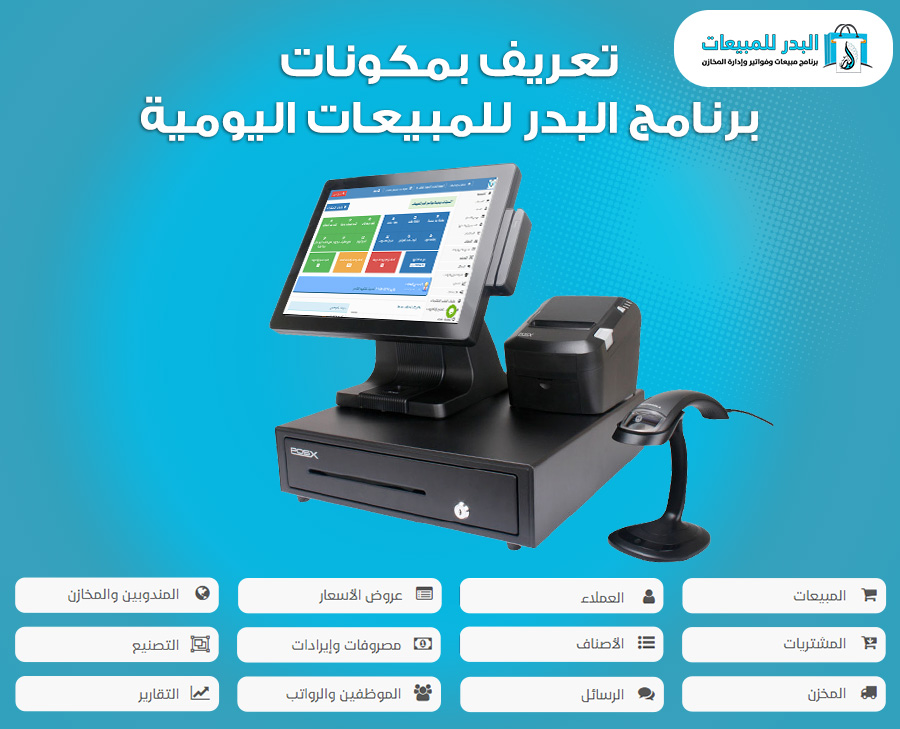
Al Badr Sales and Purchases Management Software is a fully integrated system designed to help businesses manage their commercial operations efficiently. The software provides a set of core tools that simplify sales and purchasing processes, improve inventory control, and enhance communication with both customers and suppliers.
In this page, we explain the main components of the Al Badr Sales Program, the key sections of the sales and purchases system, and how you can request a free trial version to experience its features firsthand.
The Importance of Sales and Purchases Software in Managing Business Operations
Al Badr Sales and Purchases Software is a powerful tool for managing and monitoring daily business activities with accuracy and efficiency. It helps businesses streamline operations through a wide range of features designed to meet the needs of different commercial sectors, including:
- Organizing sales and purchasing processes to reduce human errors and speed up daily transactions.
- Tracking inventory levels accurately to prevent stock shortages or excess inventory.
- Providing detailed reports and analytics on sales and purchases to support informed and strategic decision making.
- Improving communication with customers and suppliers, helping enhance service quality and increase customer satisfaction.
Why Is Al Badr One of the Best Sales and Purchases Management Systems?
- Easy to Use: The software features a simple and user friendly interface, allowing users to operate it smoothly without the need for extensive training.
- Regular Updates: The Al Badr team delivers continuous software updates to improve performance and introduce new features that align with the latest technological advancements and market demands.
- Large and Trusted User Base: Al Badr Sales Program is trusted by a wide range of businesses, reflecting its reliability, efficiency, and proven performance.
- Advanced Settings and User Permissions: The system offers flexible customization options, including detailed settings and user permission controls, enabling businesses to tailor the software to their specific operational needs.
Daily Sales and Purchases Modules – Al Badr Sales Software
Al Badr Daily Sales and Purchases Software is a fully integrated system designed to manage all aspects of business operations with high efficiency. The system includes several core modules that help organize daily transactions, improve workflow, and enhance overall business performance. Below is an overview of the main modules available in the software:
Products & Inventory
- Products: Manage and record detailed information for products and services available for sale.
- Categories: Organize products into categories for easier search and structured inventory management.
- Units: Define multiple measurement units for products, such as pieces, cartons, and other units.
- Low Stock Items: Monitor products that need to be reordered due to low inventory levels.
- Damaged Items: Track and manage damaged or unusable products accurately.
Customers Management
- Customers: Store and manage customer profiles along with their transaction history.
- Customer Groups: Segment customers into groups to support targeted marketing and sales strategies.
- Receipts & Payments: Track received and issued payments related to customer accounts.
Purchases Management
- Purchases: Record all purchase transactions made with suppliers.
- Suppliers: Manage supplier data and monitor transaction history.
- Receipts & Payments: Track payments received from or paid to suppliers.
- Purchase Returns: Manage and record returned purchase transactions efficiently.
Sales Management
- Sales: Record and manage all sales transactions.
- Best Selling Products: Analyze and identify top selling products.
- Daily Sales: Monitor and track daily sales performance.
- Sales Returns: Record and manage returned sales transactions.
Price Quotations
- Create and issue professional price quotations for customers, with the ability to convert them into sales invoices seamlessly.
Income & Expenses
- Record and track daily income and expenses, with analytical tools to help evaluate financial performance and profitability.
Employees & Payroll
- Employees: Manage employee profiles and employment details.
- Payroll: Calculate and manage employee salaries accurately.
- Advances: Track salary advances provided to employees.
- Deductions: Manage employee deductions efficiently.
- Incentives: Record and manage employee incentives and bonuses.
Reports & Analytics
- Generate detailed reports covering sales, purchases, inventory, income, expenses, and overall business performance to support data driven decision making.
System Settings
- Customize system settings to match your business needs, including tax configuration, currencies, user roles, and access permissions.
Sales, Purchases, and Retail Store Management – Al Badr Sales Software
Al Badr Sales and Purchases Software is a comprehensive solution designed for managing sales, purchases, and retail store operations efficiently. This section provides an overview of the system, explains its core components and functions, clarifies its purpose, and highlights when and how each feature can be activated and used based on your business needs.
The accompanying video offers a quick introduction to the Sales and Purchases module, showcasing the most important system functions. It explains the purpose and benefit of each button within the software interface, helping users understand how the system supports daily business operations.
Through this overview, the overall objective of Al Badr Sales and Purchases Software becomes clear, setting the stage for detailed explanations of each function and how to use them effectively.
This video presents a concise overview of Al Badr Daily Sales and Purchases Software for Retail Store Management, highlighting its main components and key functions.
The sidebar menu in Al Badr Sales and Purchases Software includes a set of functional buttons, each representing a specific operational task. In the following sections, we will walk through these functions step by step, explaining their roles, objectives, and benefits within the system.
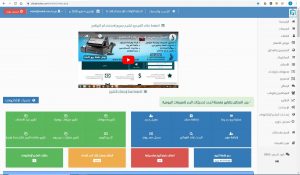
Home Dashboard
The Home Dashboard provides quick access shortcuts to the most important features inside Al Badr Sales Software, similar to a smart shortcut system designed to simplify daily operations for users.
Through this dashboard, you can quickly perform key tasks such as:
- Creating a new sales transaction
- Adding a new customer
- Viewing essential reports, including cash drawer balance, system alerts, profits, and expenses
These shortcuts help users complete daily tasks faster and manage operations more efficiently.
Important Notice:
Please note that not all shortcut options are available when using the software for the first time. To activate additional features, kindly contact the technical support team for assistance.
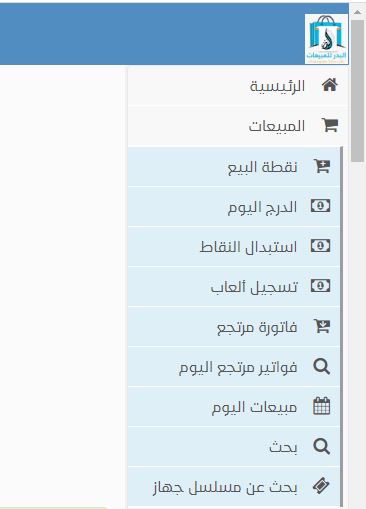
Sales Module
The Sales section includes the following features:
Point of Sale (POS)
This section allows you to process all sales transactions directly within the system.
Daily Cash Drawer
Here, you can review the daily cash drawer total and view the cash collected from your daily sales.
Loyalty Points Redemption
This feature allows you to redeem accumulated customer loyalty points. Customers earn points based on their purchases of selected products, and these points can be converted into discounts applied to future purchases.
Game Rentals Registration
This section is designed for businesses that rent games or similar items. Unlike standard products, game rentals can be rented multiple times. Profit is calculated after deducting related expenses, rather than relying on purchase and resale price differences.
Sales Return Invoice
Use this option to register a sales return invoice when a customer returns purchased items for any reason. Returned items are added back to inventory, and the refunded amount is deducted from the cash drawer to ensure accurate financial records.
Daily Sales Returns
This section allows you to review all sales return invoices for any selected day and monitor returned transactions in detail.
Daily Sales Report
From here, you can review all sales transactions for a specific day or the current day. The report includes:
- Total revenue and expenses
- Sales totals based on selling and purchase prices
- Gross profit and net profit
- Returns and refunds
- Purchases from customers and suppliers
This provides a comprehensive overview of daily business performance.
Invoice Search
This feature allows you to search for any issued invoice using multiple filters, such as:
- Date
- Customer information
- Invoice number
- Product name
How to Record Sales in Al Badr Sales Software
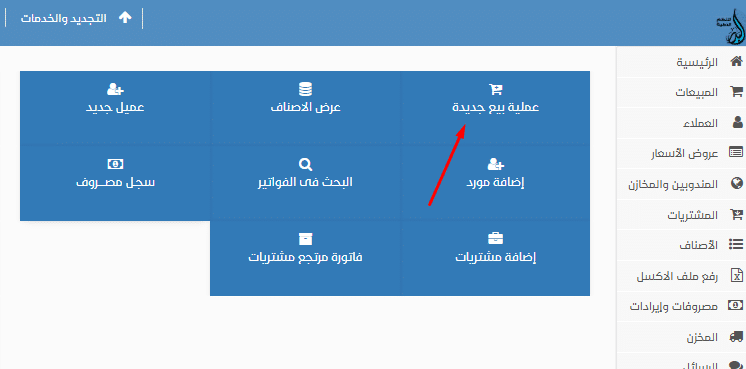
First Method: Recording Sales from the Main Screen
From the main dashboard, select New Sale.
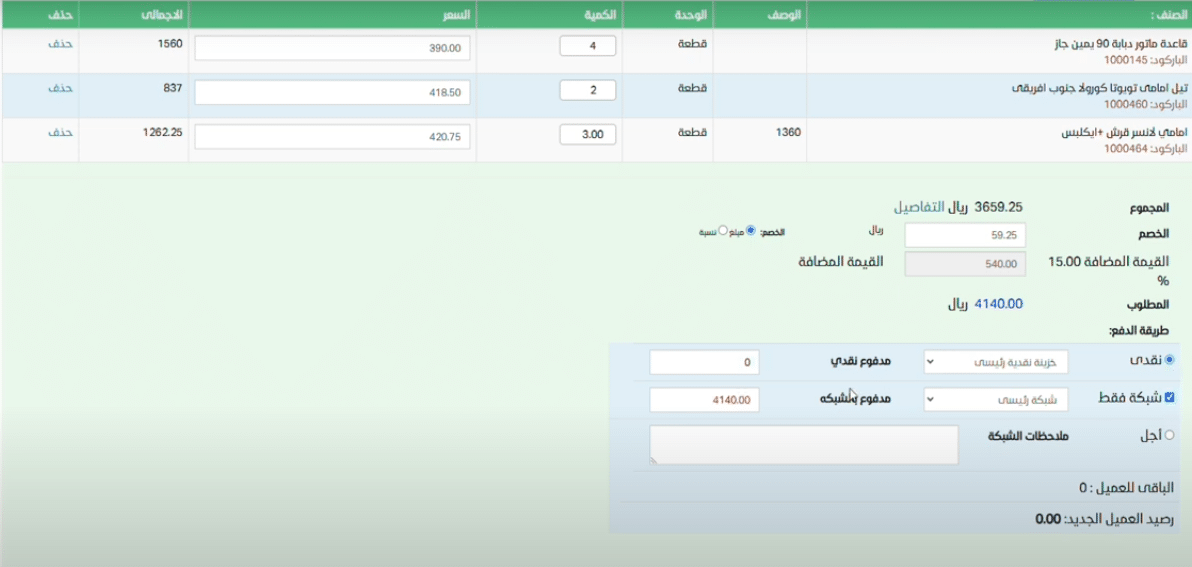
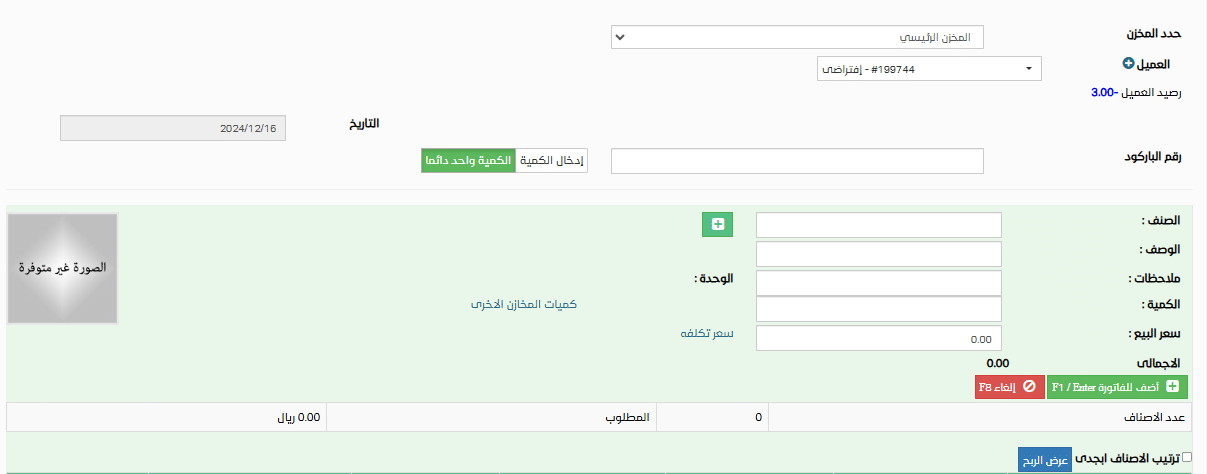
The sales screen allows you to:
- Select the warehouse
- Choose a customer (existing customer or add a new one)
- For new customers, you can record details such as name, phone number, national ID, tax number, address, and other relevant information
- Enter products using barcode scanning (for quick sales) or by product name and quantity
The invoice will appear at the bottom of the screen, showing:
- Total amount
- Discount (fixed amount or percentage, if applicable)
- Applied tax value
You can then select the payment method:
- Cash
- Card (Network)
- Credit
It is also possible to split payments between cash and card by selecting both options and entering the cash amount. The remaining balance will be recorded automatically as card payment.
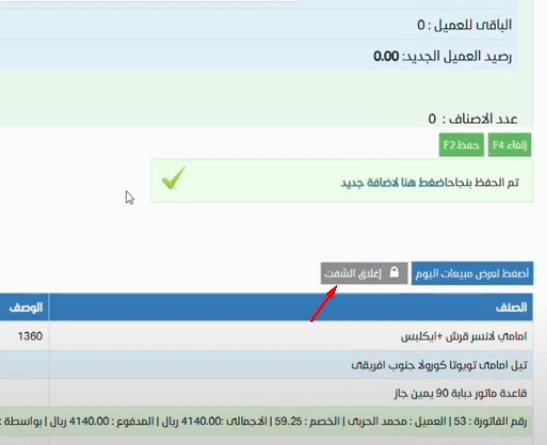
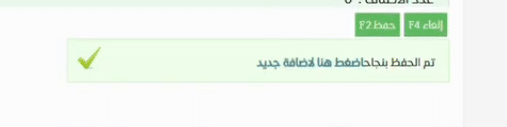
After clicking Save, the invoice can be printed if needed, and it will be added to the customer’s account.
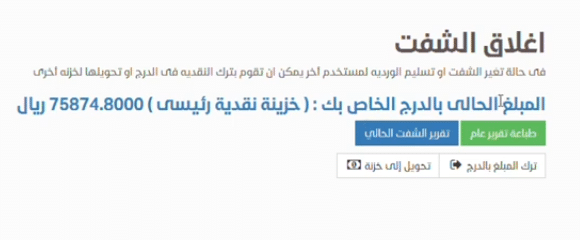
Within the same invoice screen, you can use the Close Shift option when changing shifts or handing over operations to another user. You can choose to keep the cash in the drawer or transfer it to another safe.
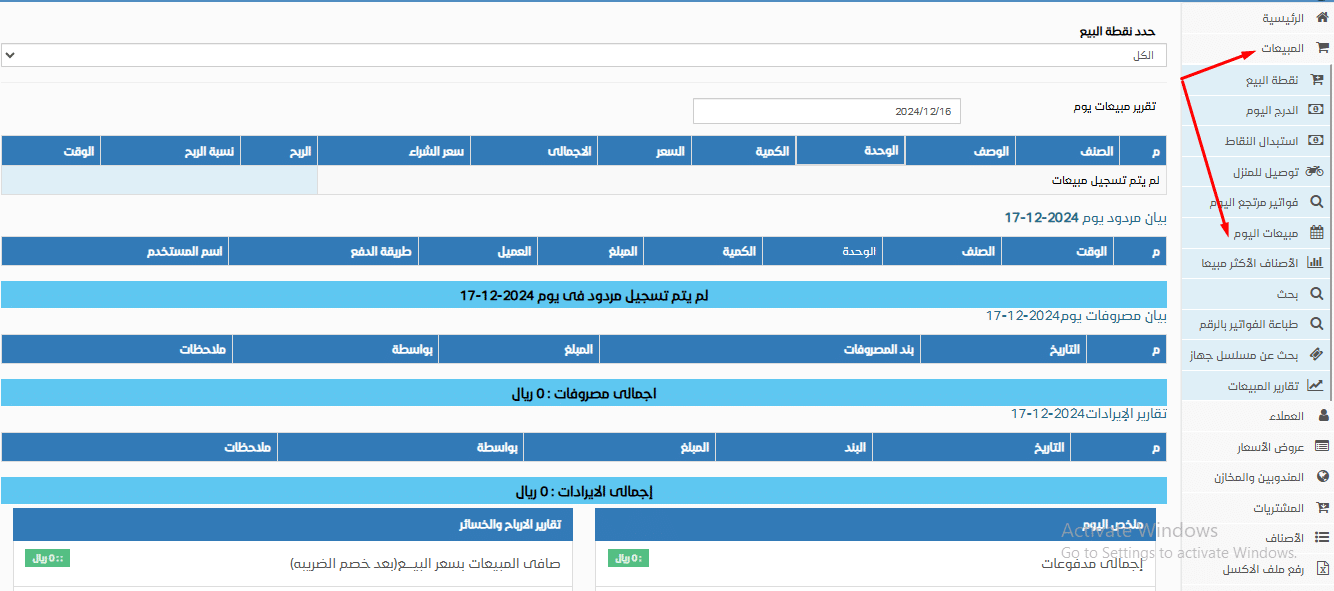
To view daily sales, go to Sales → Daily Sales, where all recorded sales transactions will be displayed with full details.
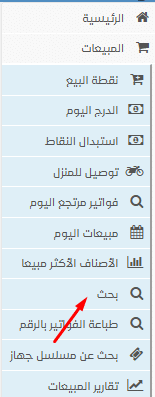
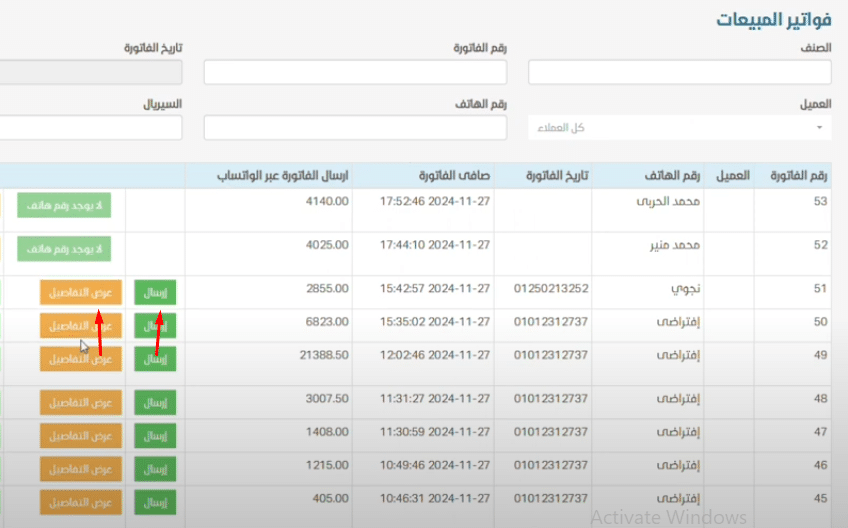
For more detailed invoice management, navigate to Sales → Search.
This section displays all invoices recorded in the system by all users. You can:
- View invoice details
- Share invoices with customers via WhatsApp
Once you click View Details, the full invoice information and related data will appear.
Second Method: Recording Sales from the Selection Screen
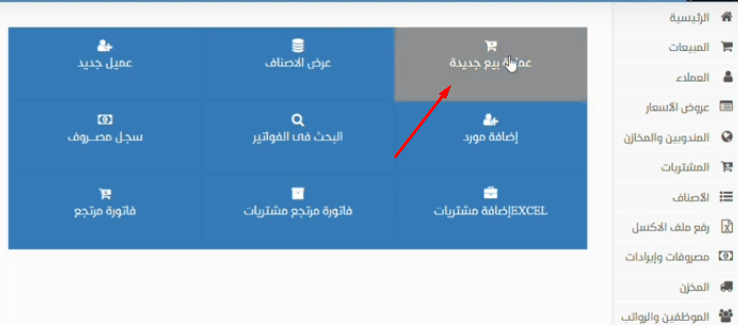
From the main screen, select New Sale, then:
- Choose the product category
- Select the product to add it automatically to the invoice
This screen includes the same invoice details, such as totals, discounts, tax calculation, and payment methods (cash, card, or credit).
A customer selection panel is available on the left side of the screen, allowing you to choose an existing customer or add a new one.
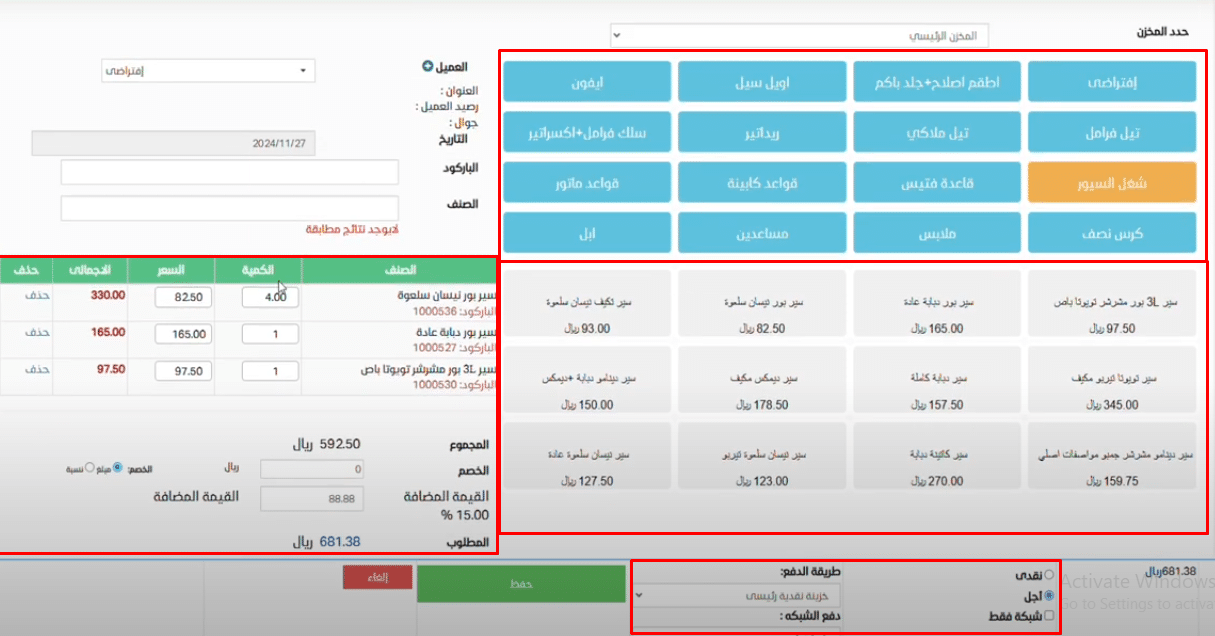
Once you click Save, the invoice will be recorded and linked to the selected customer.
Customers
Customers
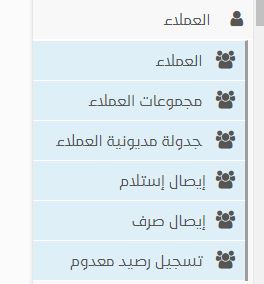
From this section in Al Badr Sales and Purchases Software, you can add new customers to your store, register their full details in your database, and manage all financial transactions with them.
This includes viewing customer account statements, editing customer information, or deleting customer records when needed.
Customer Groups
This feature allows you to create customer groups based on shared characteristics, such as:
- Wholesale customers
- Semi wholesale customers
- Retail customers
- Customers by geographic regions
Each customer can be assigned to a specific group, enabling you to define customized pricing, payment terms, or transaction rules for each group.
Customer Debt Scheduling
From here, you can schedule customer debts and defer installment payments to upcoming months in cases where customers are unable to pay on time.
This helps manage outstanding balances and overdue installments accurately without disrupting your financial records.
Cash Receipt Voucher
This option allows you to issue a cash receipt voucher when customers pay outstanding debts or settle delayed payments.
The receipt serves as proof of payment for both the customer and the store, while also updating the cash drawer balance accurately.
Cash Payment Voucher
From this section, you can issue a cash payment voucher to any customer or individual when the store pays out amounts related to refunds, liabilities, or expenses.
Write Off Balance
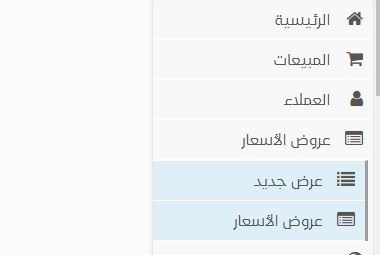
This feature allows you to record damaged, spoiled, or unrecoverable goods, including items sold on credit that can no longer be collected.
Once recorded, the system writes off the balance from the store’s accounts to prevent pending or inaccurate financial records.
Price Quotations
New Quotation
From this section in Al Badr Sales and Purchases Software, you can create a quotation for a customer that includes the prices of requested products.
This quotation does not affect inventory levels, as it is for price reference only.
It is commonly used by businesses such as electrical supply stores, bookstores, and retail shops that provide customers with price estimates before purchase.
Quotation List
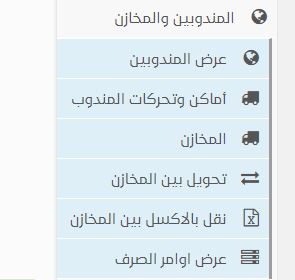
Here, you can view all price quotations issued by your store for the current day or any selected date.
Sales Representatives & Warehouses
View Sales Representatives
From here, you can view all sales representatives associated with your store, if applicable.
Each representative is considered a mobile point of sale or a moving warehouse that carries inventory.
You can view and edit details such as:
- Representative name
- Username and cashier account
- Assigned region
Each representative has a dedicated username and password, as they act as the cashier responsible for the inventory assigned to them.
Representatives Locations & Movements
This section allows you to view assigned regions and movement routes for each sales representative.
You can also select a specific date to track representative activity and movements during that day.
Warehouses
Here, you can view all warehouses, including mobile warehouses assigned to sales representatives.
You can update inventory records by syncing sales performed outside the store, allowing the system to reflect:
- Sold quantities
- Remaining stock for each representative
Transfer Between Warehouses
This option allows you to transfer inventory between warehouses by specifying the transferred quantities and viewing the current available stock.
Excel Based Warehouse Transfer
This feature enables bulk inventory transfers between warehouses using an Excel file.
It simplifies the transfer process by allowing you to upload a spreadsheet instead of selecting each product and quantity manually.
Issue Orders
From this section, you can view all inventory issue orders assigned to sales representatives.
You can also define a specific time period to review issued inventory movements and identify the source warehouse for each order.
Purchases
Here you can find:
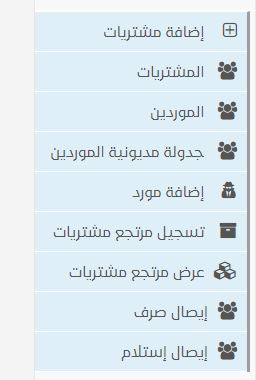
Add Purchases
From this section, you can add new purchase transactions from suppliers to your store by selecting the product to be supplied, the purchase date, and the supplier.
You can then complete the remaining required details, including quantity, purchase price, and other related information.
Purchases
This section allows you to view all purchase transactions for your store.
You can search by:
- Supply invoice number
- A specific supplier or all suppliers
- Supply date to display purchases made on a selected date
Suppliers
From here, you can view all suppliers registered in your store along with their details, including:
- Company name
- Phone number
- Supplier balance (amount owed to or by the supplier)
- Performing cash transactions between the store and suppliers to settle dues
- Viewing returned supply records
- Editing supplier information
- Deleting suppliers
You can also view the total outstanding balance owed by the store to all suppliers.
Supplier Debt Scheduling
This feature allows you to schedule supplier debts.
If a payment installment to a supplier is delayed, it can be postponed to the following month.
You can also view:
- Paid installments
- Overdue installments
- All installments
for a specific supplier or for all suppliers.
Add Supplier
From this section, you can add a new supplier to your store with complete details such as address, phone numbers, balance, tax number, and other relevant information.
Record Purchase Return
This option allows you to record a purchase return to a supplier in case you need to return goods due to defects, non compliance with specifications, or any other reason.
View Purchase Returns
From here, you can view all returned purchases and supplies sent back to suppliers for any selected date.
Cash Payment Voucher
This section allows you to issue a cash payment voucher to a supplier when paying for supplied goods or settling part of the outstanding balance.
The system records:
- Payment amount
- Supplier balance before and after payment
- Payment date
- Cash safe used for payment
The updated balance is calculated automatically after the payment.
Cash Receipt Voucher
From here, you can issue a cash receipt voucher received from a supplier, whether due to returned goods or any other reason.
The system records the supplier balance before and after receipt, the receiving cash safe, and the transaction date.
Products
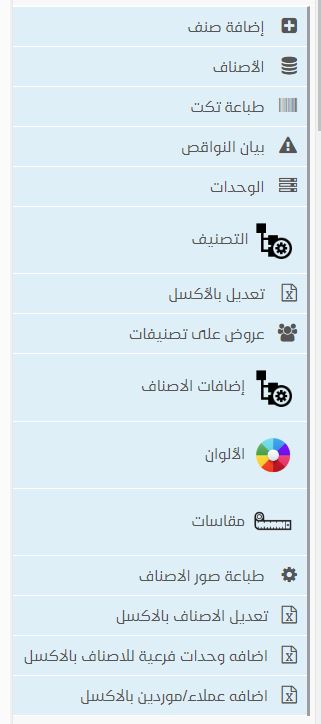
Here you can find:
Add Product
From this section, you can add new products to your store by entering full product details, including:
- Purchase price
- Selling price
- Discount
- Barcode
- Quantity
- Category
Products
This section allows you to view all registered products in your store.
You can filter products by:
- Supplier
- Category
- Warehouse
For businesses that rely on color and size variations, you can also manage products based on specific colors or sizes.
Print Barcode Labels
From here, you can print barcode labels for your products.
Low Stock Report
This feature displays a report showing all products that are close to running out, helping you restock before inventory is depleted.
Units
From this section, you can add measurement units for your products based on your business type, such as kilograms, grams, cartons, pieces, and more.
Categories
Here you can add product categories under which your products will be organized, such as meat, fish, dairy, and bakery sections in supermarkets.
Bulk Edit via Excel
This feature allows you to update products by uploading an Excel file that includes quantities, prices, and other modifications, instead of editing products one by one.
Category Based Promotions
From here, you can create promotions for specific product categories.
For example, offering a discount on men’s pants where customers receive three items for a fixed price during clearance seasons or holidays.
Product Add Ons
This feature appears only when your store activity is set as a restaurant.
It allows you to define optional add ons for menu items, such as ketchup, salads, or soft drinks, with predefined prices.
Colors
From this section, you can add color options to your products, especially useful for businesses such as clothing and footwear stores where products come in multiple colors.
Sizes
Similar to colors, this feature allows you to add multiple sizes to better define your products.
Print Product Images
From here, you can print product images with prices, useful for promotional posters and in store displays.
Edit Products via Excel
This option allows you to edit product data through Excel by selecting one action at a time, such as:
- Adding products
- Updating quantities
- Updating selling prices
- Updating purchase prices
Add Sub Units via Excel
This feature allows you to add sub units for products using an Excel file instead of manual entry.
Import Customers / Suppliers via Excel
From here, you can import customers and suppliers along with their full details using an Excel file, simplifying the data entry process.
Expenses & Income
Here you can find:
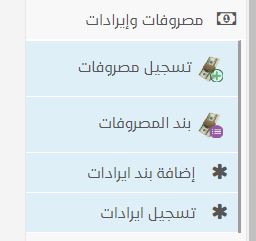
Record Expenses
From this section, you can record daily store expenses so they are deducted from daily revenue or gross profit, allowing the system to calculate net profit accurately.
Expense Categories
Here, you can add expense categories such as rent, water bills, electricity bills, and other cost types to clearly classify each expense.
Add Income Categories
This feature allows you to add income categories, similar to expense categories, such as rental income, vehicle rental, property income, or any other additional income sources.
Record Income
From here, you can record any income received by the store under the appropriate income category, ensuring accurate cash drawer and financial reporting.
Manufacturing
Here you can find:
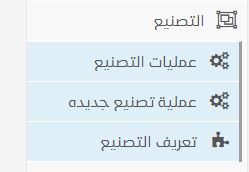
Manufacturing Operations
From this section, you can view all manufacturing operations by selecting the product, the manufacturing order, and the date range.
By “manufacturing,” we mean converting raw materials into finished products, such as in restaurants where raw ingredients are used to prepare different dishes.
New Manufacturing Order
Here, you can create a new manufacturing order by specifying the product and the number of finished products to be produced.
You can also view all raw materials used in the production process.
Manufacturing Definition
From this section, you can define the manufacturing process for each product.
For example, in a restaurant, you may define a dish and list the quantity of each raw material used.
- For a hamburger sandwich:
- 1 slice of meat
- 2 tomato slices
- Vegetables
- Onion rings
The system allows you to specify the exact quantity of each ingredient, e.g., half a pack of canned meat, a quarter bunch of vegetables, etc.
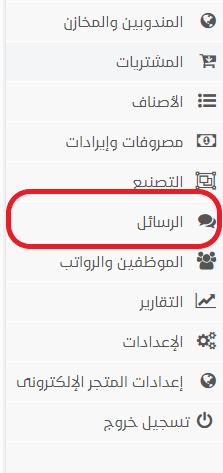
Messages
From here, you can use the SMS service to send messages to your customers, containing the latest promotions, discounts, and offers, helping to boost sales and attract more customers.
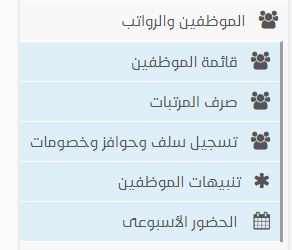
Employees & Payroll
Here you can find:
Employee List
From this section, you can add a new employee with details such as:
- Name
- Job title
- Phone number
- Salary
- Any advances taken
You can also edit or delete employee information.
Employees can be filtered to show all, active, or inactive staff.
Payroll and HR management can be handled here, including salary disbursement, deduction setup, and specifying the payment cash safe.
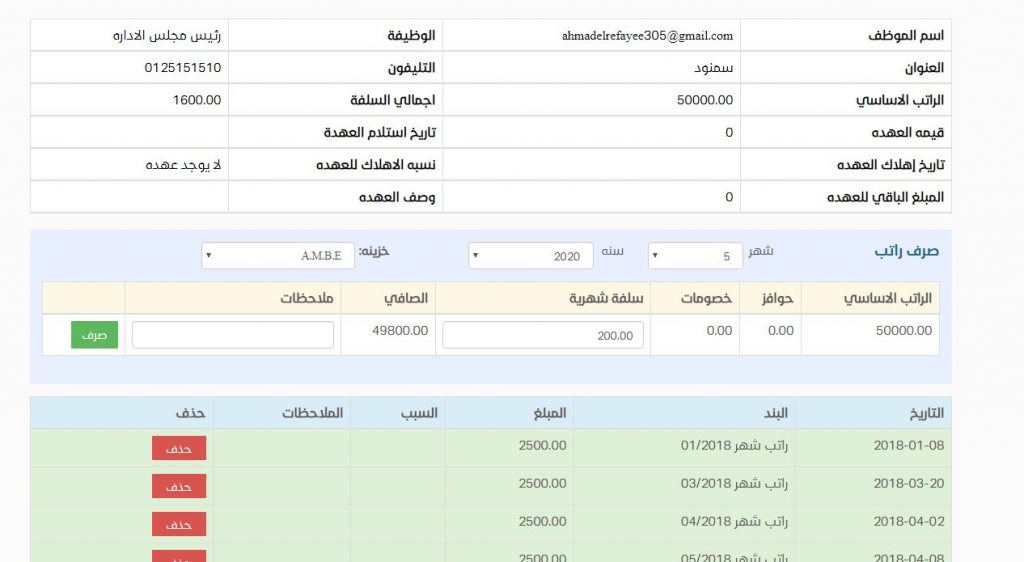
Payroll Disbursement
Here, you can process employee salaries by specifying:
- Month and year
- Cash safe from which payment is made
- Any advances or deductions
The system calculates net salary and allows you to record notes.
All data is saved in the program’s database.
Recording Advances, Incentives, and Deductions
From here, you can add advances, incentives, or deductions for any employee.
You can specify the amount, reason, and notes, which are then linked to the employee’s record for automatic salary adjustment at the end of the month.
Employee Alerts
Here, you can create alerts for employees that appear on the main screen to confirm specific tasks, such as:
- Reminding the accountant to collect a cash payment
- Restricting sales to a specific customer
- Assigning overtime hours
Weekly Attendance
From here, you can record employees’ attendance throughout the week.
It functions like a weekly attendance log, allowing you to mark each employee as present or absent.
The system calculates total attendance for each employee, displayed alongside their name for weekly evaluation.
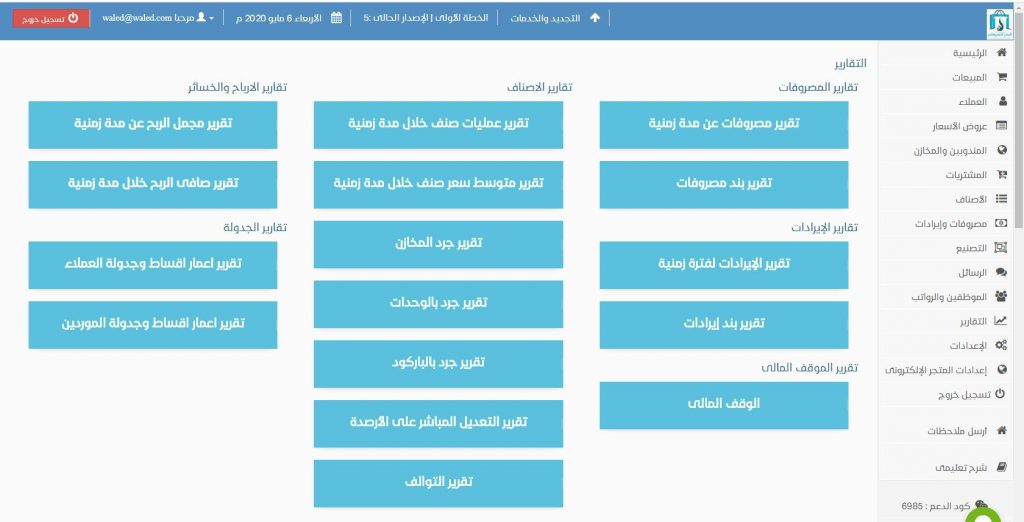
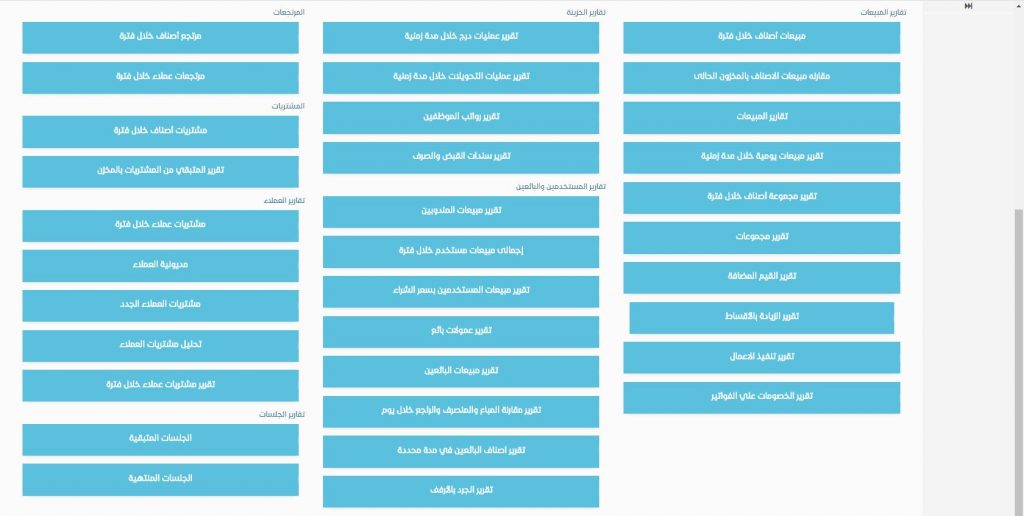
Reports
Here you can find a set of the most important reports that provide detailed insights into your store’s activity over any period you select.
Nothing big or small, incoming or outgoing escapes notice; the system tracks everything accurately as shown in the images.
All you need to do is click on the report you want, and it will generate the data you need in moments, often in the time it takes to count on your fingers.
Settings
Here you can find:
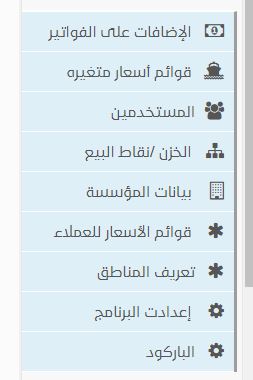
Invoice Add-Ons
From this section, you can add any additional charges that may apply to your products, such as:
- Value-added tax (VAT)
- Service fees
- Other similar add-ons
Variable Price Lists
Here, you can set up variable price lists for products whose prices are not fixed but fluctuate based on market conditions.
For example:
- Iron (linked to global market price daily)
- Paints
- Gold
- Cement
- Other construction materials
Users
From here, you can create user accounts for your store or cashier devices.
You can assign permissions based on each user’s role, responsibilities, and access level.
Cash Safes / Points of Sale
Here, you can add a new cash safe or drawer, view all cash drawers in your store (if more than one exists), transfer cash between points of sale or drawers, and edit or delete drawer data.
Company Information
From this section, you can view and update your business information, including:
- Logo displayed in the system
- Store details shown at the top and bottom of invoices
- Tax registration number
Customer Price Lists
From here, you can create customer-specific price lists based on the type of transaction.
Examples include:
- Wholesale price lists for wholesale customers
- Semi-wholesale price lists
- Retail price lists
Each customer group can have different pricing structures.
Define Areas
Here, you can add service areas or regions for your business and map them using Google Maps integration.
Program Settings
From this section, you can configure the program according to your business needs.
You can enable the features you want and leave unnecessary features disabled.
Barcode Settings
From here, you can configure barcode settings, including:
- Dimensions (length, width, height)
- Margins
- Barcode scale
- Enabling barcode scales
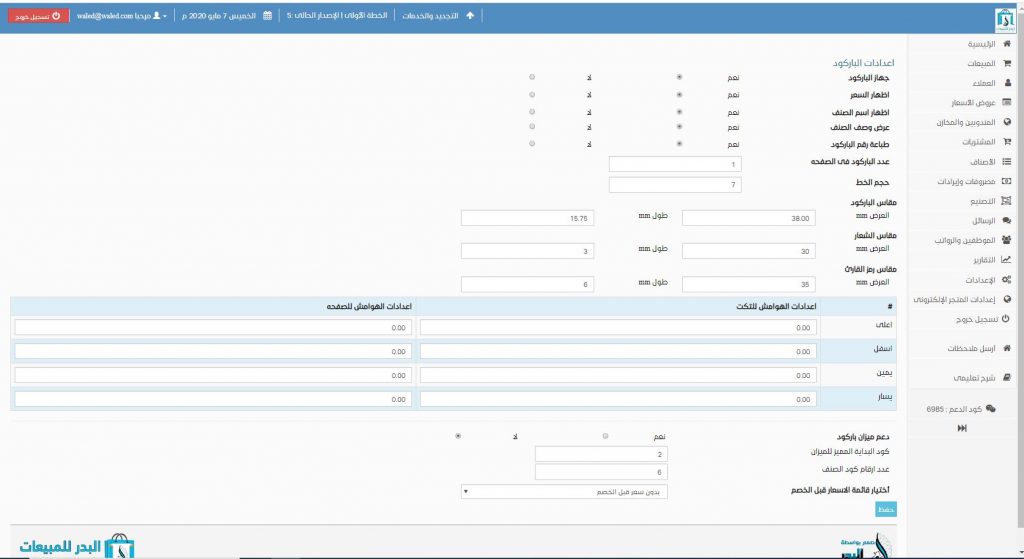
This section allows full customization of barcodes for your products, as illustrated in the accompanying images.
E-Commerce Store Settings
The e-commerce store is an online shop dedicated to Badr Company clients who subscribe to the Badr Sales Program online version.
Each online account is linked to an e-commerce store where products from your physical store can be displayed.
After selecting which products to show online, you can have a multi-category, multi-product store featuring promotions, discounts, and best-selling items.
Through this store, customers can complete payments via credit card or online payment gateways, and products are shipped directly to them.
In short, it acts as your second store but online.
Here you can find:
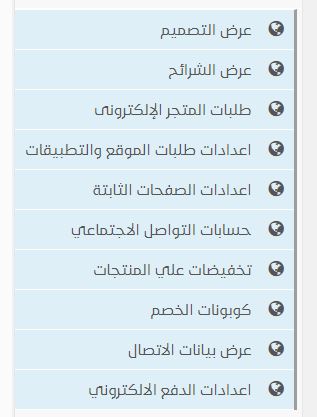
- Design: Choose the look and design of your store from multiple templates available.
- Slideshow: Add slider images that will appear on the homepage of your store to showcase your business. You can link these images to URLs so that users are redirected when they click on them.
- E-Commerce Orders: Track online orders from your customers, prepare shipments, and update order statuses (completed, in delivery, etc.).
- Order & App Settings: Configure your online store settings such as shipping fees, maximum shipping charges, minimum order value, shipping type (fixed amount or percentage), maximum allowed shipping fee, maximum quantity of cards sold, and stock item limits.
- Static Pages Settings: Add static pages to your store containing policies, guidelines, or store rules. These pages are accessible to customers and appear at the bottom of the website.
- Social Media Accounts: Add your social media accounts so that when customers click on the respective icons in your store, they are redirected to your social media pages.
- Product Discounts: Set promotions and discounts on your products for special occasions or seasonal sales, such as Mother’s Day or other holidays.
- Discount Coupons: Add discount coupons that customers can enter during checkout to deduct the coupon value from their total invoice.
- Contact Information Display: Enter your company information such as name, address, email, and a brief description. This information will appear on the homepage. You can also set the store banner for certain templates and provide a direct link to your e-commerce store.
- Online Payment Settings: Configure the online payment settings after coordinating with payment service providers and entering the data required to enable online payments in your store.
Additional Options
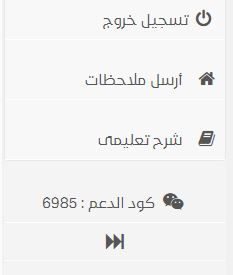
- Logout: To log out of your account.
- Send Feedback: Submit any feedback about the program to the company support team for assistance or clarification.
- Tutorials: Access educational lessons explaining how to use the program.
- Support Code: This code is linked to your program account. When contacting support, provide this code so the support team can identify your account and program.
How to Get a Free Trial of Badr Sales & Purchases Program
You can get a free trial of the Badr Sales & Purchases Program by following these steps:
- Visit the Official Website: Go to the official Badr Sales & Purchases Program website.
- Register for the Trial: On the homepage, look for the option “5-Day Free Trial” or “Try for Free.” Clicking this will redirect you to the registration page.
- Create a New Account: Enter your company information, including name, email, and phone number. Then click “Register” or “Create Account.”
- Activate the Trial: After registration, you will receive a confirmation email with a link to activate your account. Click the link to activate the trial.
- Start Using the Program: Log in to your account to begin using the free trial and explore all available features during the trial period.
Sign up now and get your free trial