


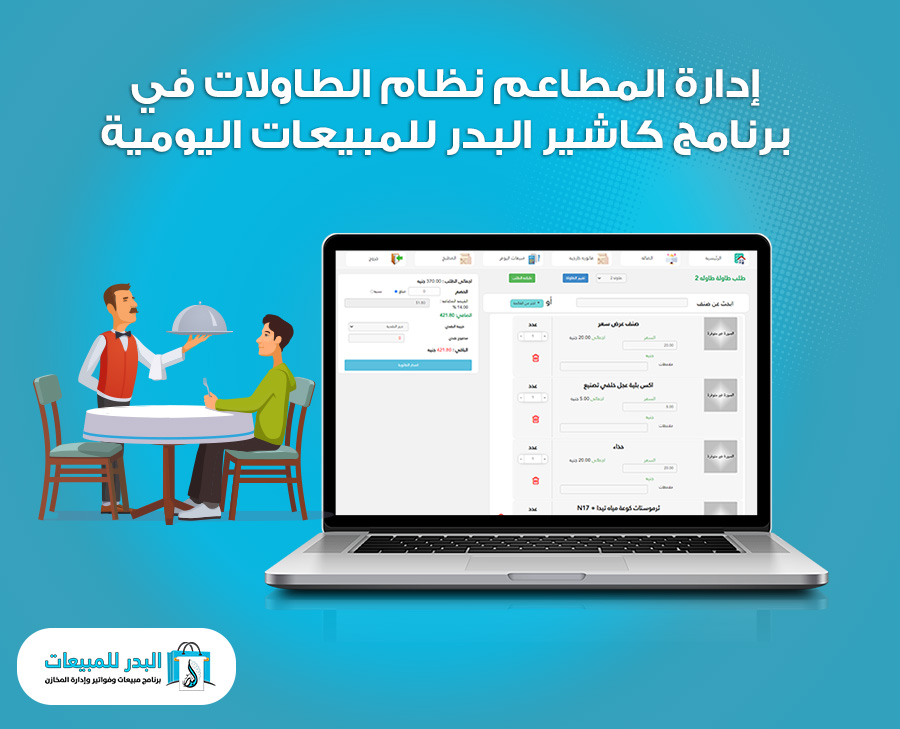
In restaurant management, the table system is a key element for organizing operations and providing better service. This system manages tables inside the restaurant or café, and it varies in how invoices are issued and orders are organized.
Sometimes, an invoice can remain open for a table to allow additional orders as long as the customer is still at the restaurant and has not yet decided to leave.
When the customer leaves, the invoice is closed permanently. In the Al-Badr Daily Sales POS Program, the table system helps you organize table operations flexibly, ensuring invoice accuracy and ease of managing orders throughout the customers’ visit.
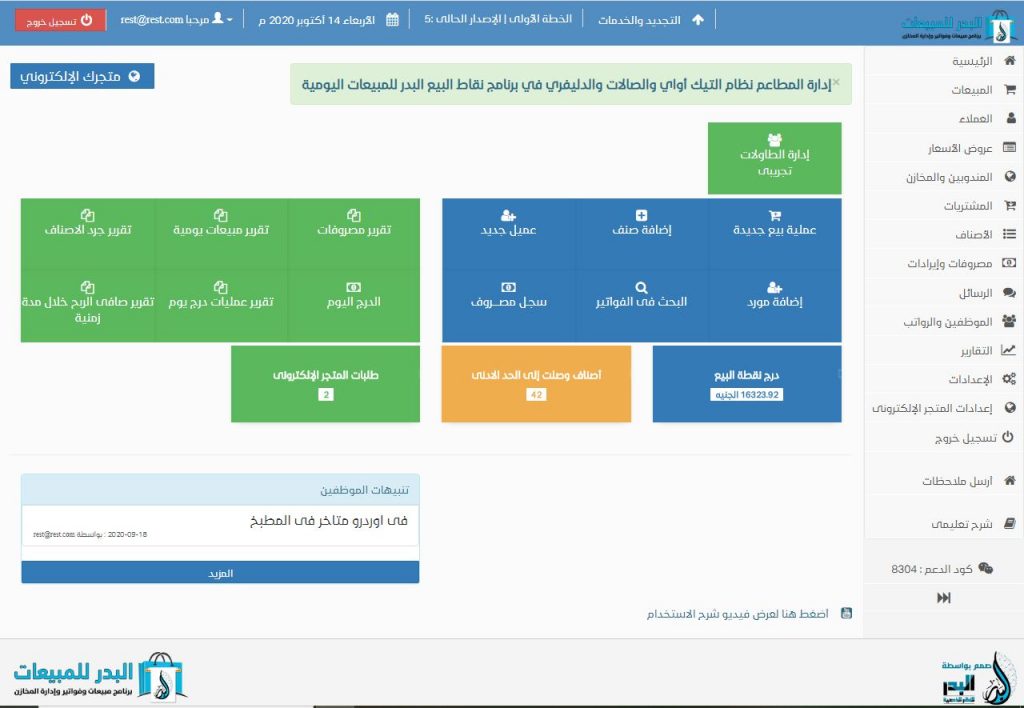
Restaurant Management – Table System in Al-Badr Daily Sales POS | Complete POS System
You can watch a detailed video on managing restaurants using the table system for this article.
After the video, here are the step-by-step instructions:
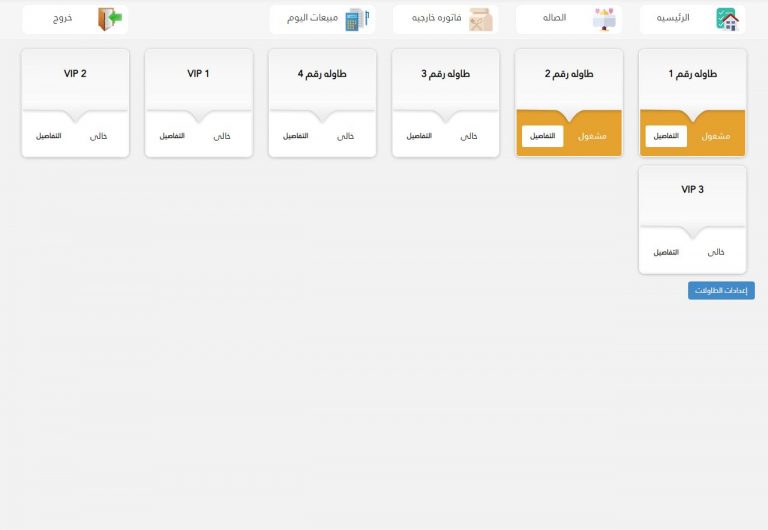
From the main page, click on “Table Management” to open the table management page:
Here, you’ll see all tables in the restaurant and have the option to add a new table.
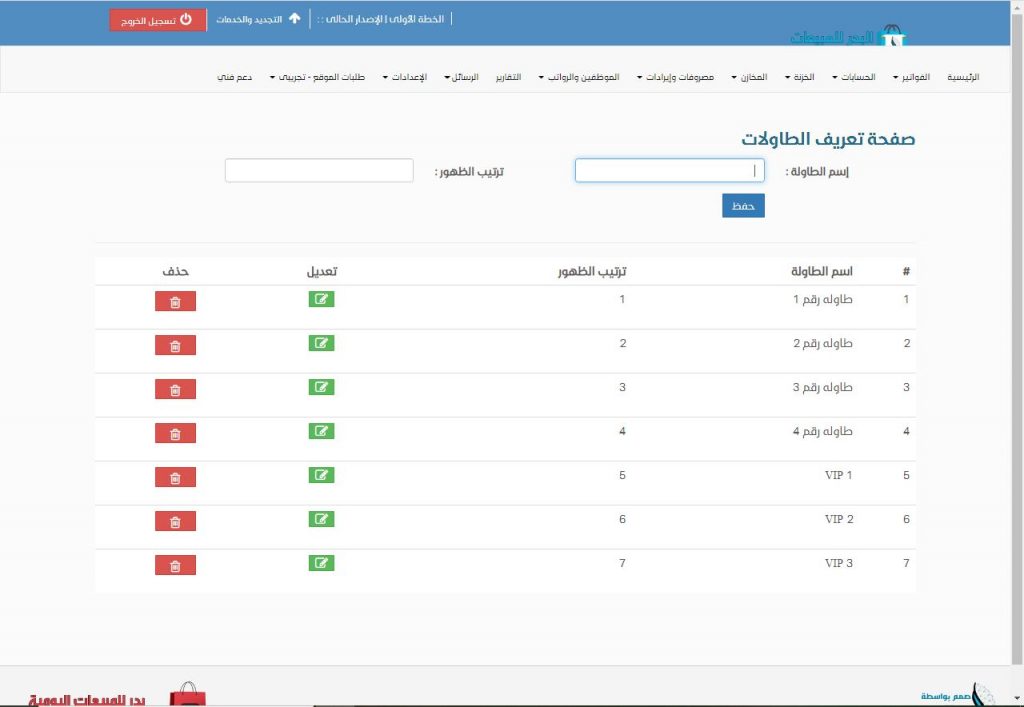
By clicking the “Table Settings” button, a new page opens where you can enter the table name and set its display order. You can then save or cancel, with the option to delete or edit existing tables.
On the table page, all tables are displayed with their status (occupied or vacant).
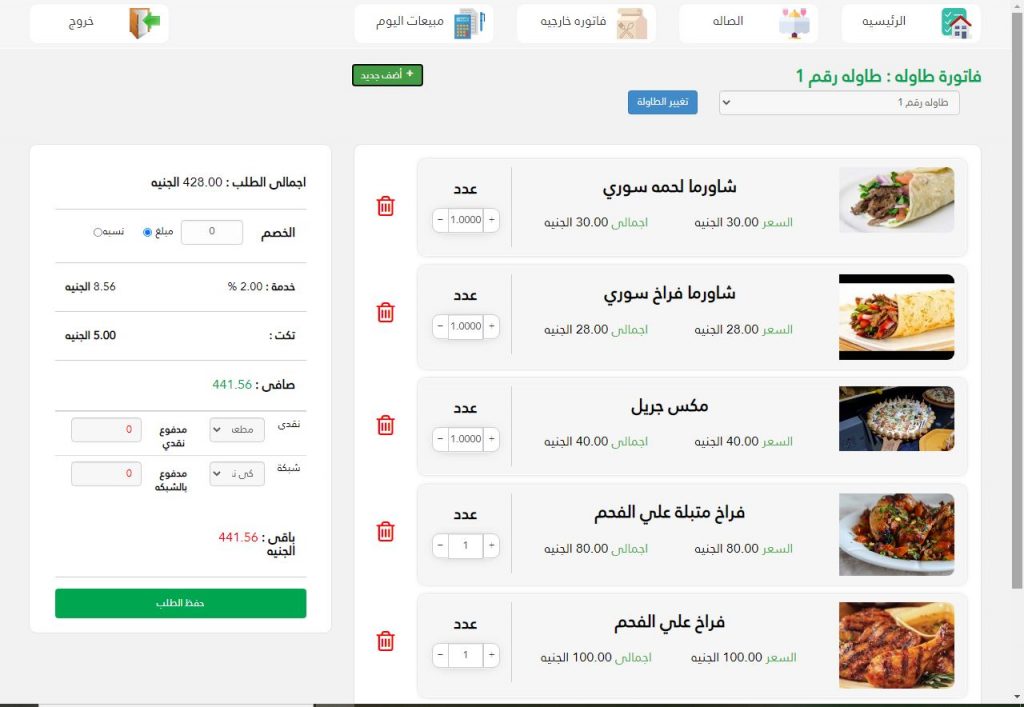
You can also view the orders for a specific table by clicking on table details, and the program will show all requested orders.
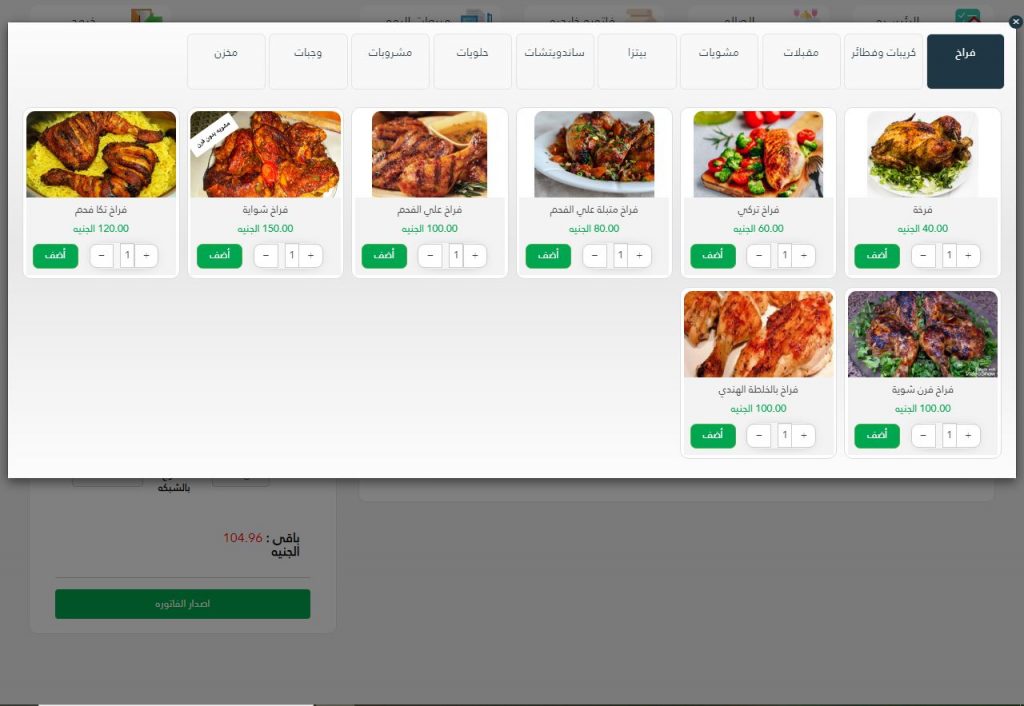
If you open a new table, click “Add New” to add items for the first time.
Here, you can add new orders. At this point, the “Issue Invoice” button changes to “Save Order”.
After saving, it returns to Issue Invoice – this allows the customer to close the invoice and pay when ready.
If there are additional orders, the button will remain “Save Order”.
Note: The button at the bottom of the page is initially “Issue Invoice”, but after selecting items and adding them to the table invoice, it changes as shown in the image.
You can also move a current table’s orders to another table:
- Open the current table.
- Select an empty table from (Table Invoice: Table Number).
- Click “Change Table”.
The old table becomes vacant, losing previous order details, while the new table becomes occupied with all previous orders – useful if customers want to switch tables.
For vacant tables:
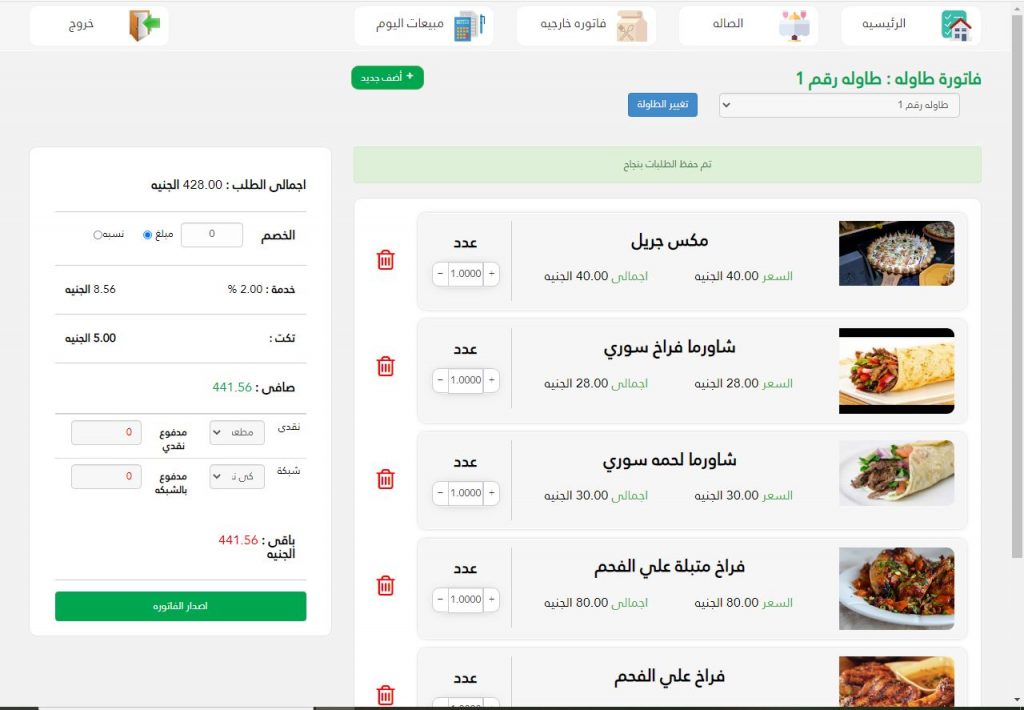
- The waiter can record orders manually on paper for the cashier to enter later on a POS device.
- You can edit or delete item quantities until the order is finalized.
- The cashier then clicks Issue Invoice, following the same steps as the cash/ takeaway system.
New orders automatically add to the open invoice, and the kitchen receives them for preparation. Once meals are ready, the chef marks them as completed.
In conclusion, table management in restaurants using Al-Badr POS simplifies operations and enhances customer experience. The system allows open invoices that can accommodate new orders until the customer leaves, ensuring accurate billing and smooth order management. Whether for a small or large restaurant, Al-Badr POS improves operational efficiency, speeds up service, and ensures accuracy – leading to higher customer satisfaction and increased profits.
Try the program here
Watch tutorial videos of the program here