


Editing Sales Invoice Data in Al-Badr Daily Sales Program
Editing sales invoice data in Al-Badr Daily Sales Program is a straightforward task. Selecting the most suitable invoice template is an important step to ensure organizational accuracy and smooth business operations. In this article, we will guide you on how to choose the right sales invoice template in Al-Badr Sales Program, with a detailed explanation including images and steps to help you customize the template according to your needs.
Next, we will cover the steps for editing sales invoice data within the program, providing a visual guide to modify different fields in the invoice. Finally, we will share a detailed video tutorial available on Al-Badr Smart Systems’ YouTube channel, allowing you to follow along step by step and take full advantage of all the program’s features.
How to Choose the Right Sales Invoice Template in Al-Badr Sales Program
To select the most suitable sales invoice template for your business, follow these steps:
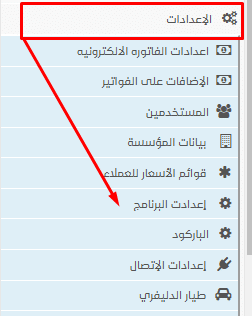
- From the side menu in Al-Badr Sales Program, go to Settings and click on Program Settings, as shown:
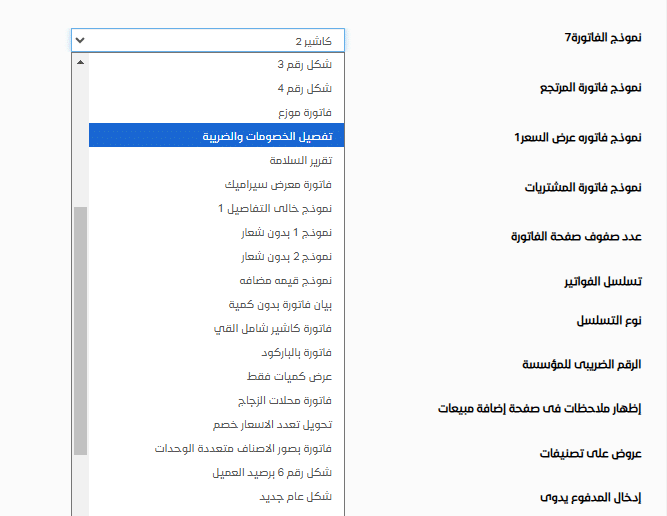
- In the Invoices section, under Invoice Template, you can choose from various invoice templates, whether for cashier receipts or A4 format. Options include Cashier 1, Cashier 2, Cashier 3, which are simple/small cashier templates.
- For larger printers, you can choose A4 templates, such as Format 1, Format 2, and so on.
- Additionally, you can find templates for new tax invoices, simplified tax invoices, and other designs for different business types, such as ceramic showrooms.
- Templates are also available with or without company logos, giving you flexibility to customize your invoice appearance.
Steps to Edit Sales Invoice Data in Al-Badr Sales Program
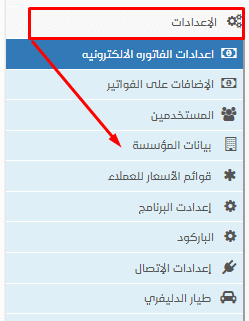
To edit the data on a sales invoice, follow these steps:
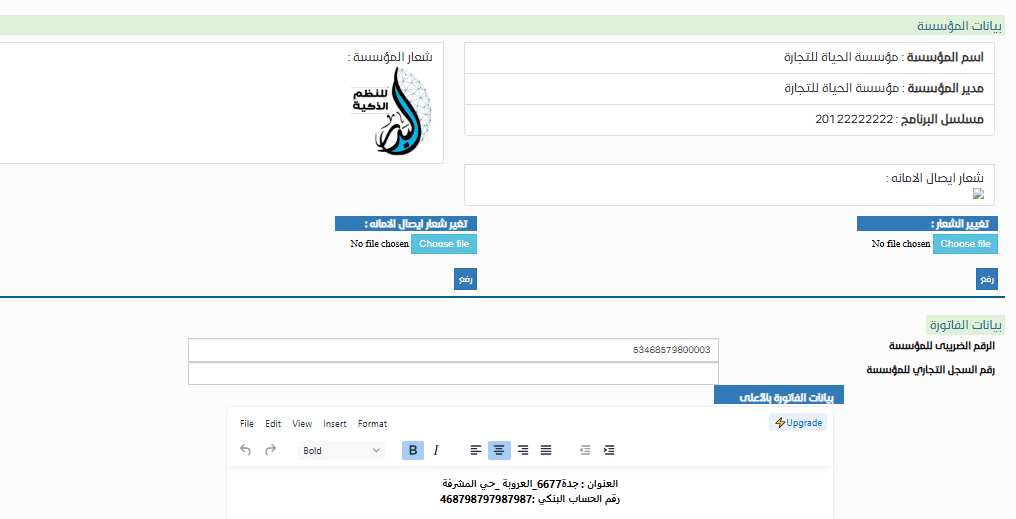
- From the side menu, select Company Data.
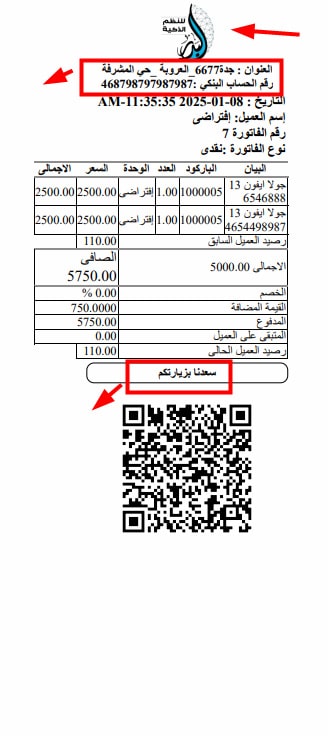
- On this page, you can add or update your company information, including changing the logo, tax number, and commercial registration details for your client. You can also write or modify content on the invoice according to your preferences, both at the top and bottom of the invoice.
- You can enter your company’s tax number and edit the upper section of the invoice (Invoice Header) as well as the lower section of the invoice (Invoice Footer). You can write any details you need, and below that, you have the option to adjust the font size for the invoice.
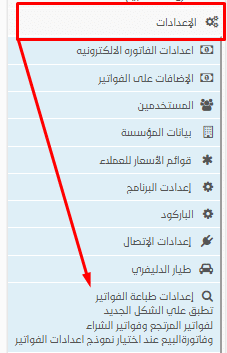
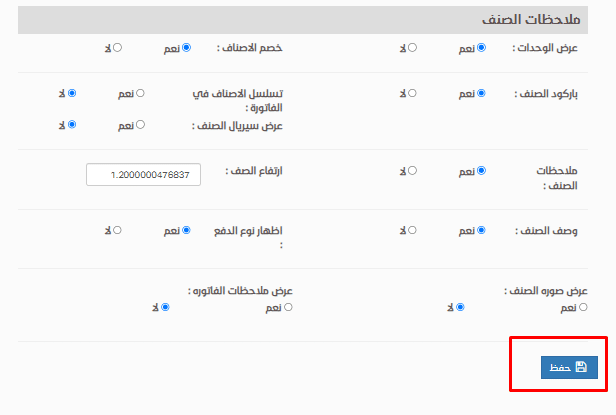
- Another way to edit invoice data is through Settings → Invoice Printing Settings.
- On this page, you can add or modify the information you want to appear on the printed invoice. After making your changes, click Save.
There is another way to edit invoice data as well; from the settings, select “Invoice Printing Settings”.
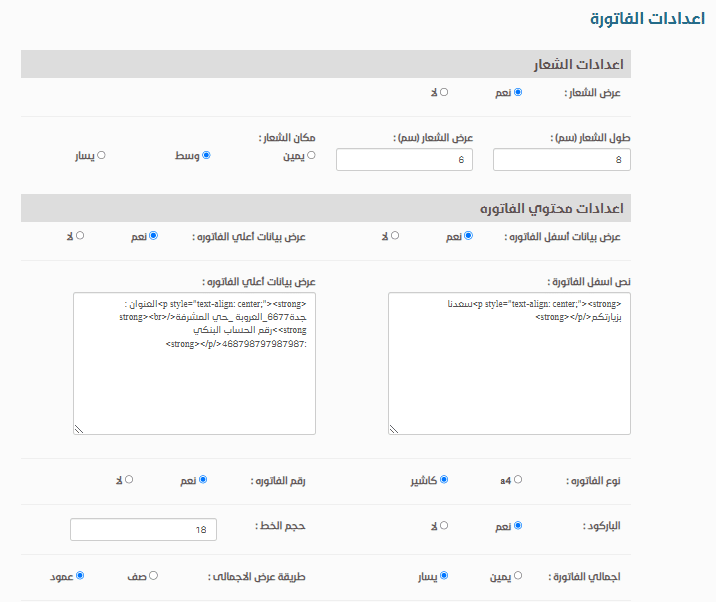
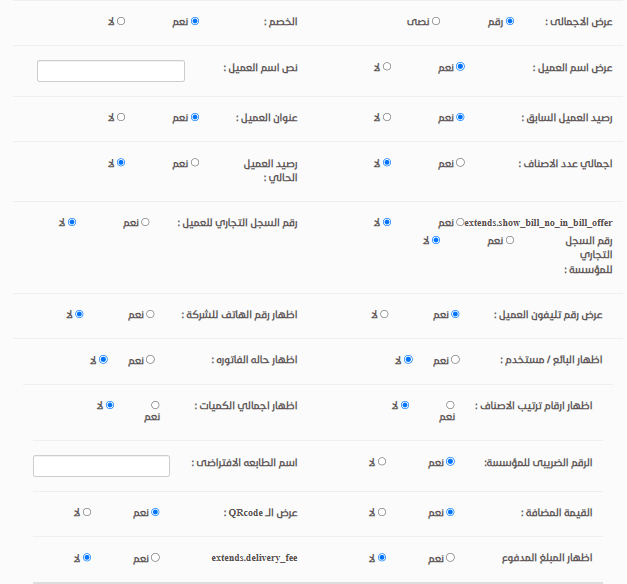
Here is an example of how an invoice looks:
For a detailed video tutorial on editing sales invoice data, visit the Al-Badr Smart Systems YouTube channel.
Try the program for free [here]