


Printing customer receipts and kitchen invoices is a vital feature in Al-Badr Sales Pro, enabling smooth order fulfillment and clear record-keeping. Achieving Optimal Printer Settings for Your Restaurant depends on your active web browser, such as Mozilla Firefox or Google Chrome. Configuring browser print dialog parameters properly ensures perfect ticket scaling, accurate margins, and proper header alignment.
Steps for Achieving Optimal Printer Settings for Your Restaurant
Primary Settings Configuration
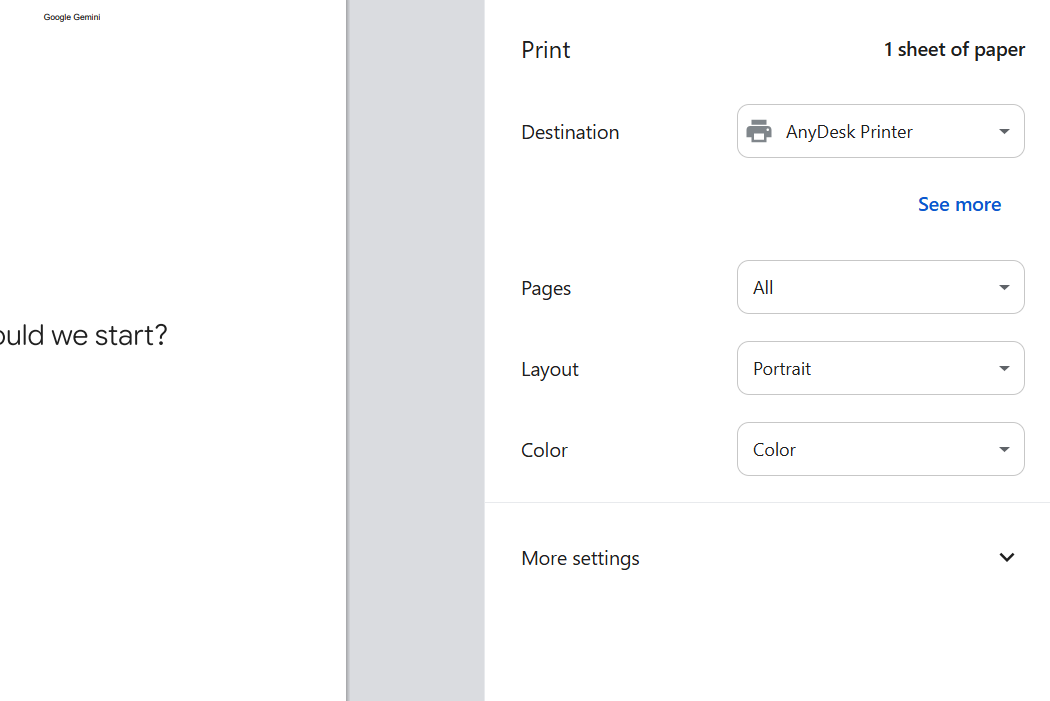
When establishing Optimal Printer Settings for Your Restaurant, start by configuring primary print parameters:
- Destination:
- Function: Selects the physical thermal receipt printer or network printer connected via Wi-Fi, Ethernet, or USB (or options like saving to PDF or virtual printers like AnyDesk Printer).
- Usage: Click the dropdown menu to choose your target device from available connected hardware.
- Pages:
- Function: Specifies document pages designated for output printing.
- Usage: Select All to print complete document streams, or select Custom to isolate specific pages.
- Layout:
- Function: Determines page orientation.
- Usage:
- Select Portrait if height exceeds width.
- Select Landscape if width exceeds height.
- Color:
- Function: Controls output color modes.
- Usage: Select Color for full-color receipts, or Black and white to conserve ink.
- More settings:
- Function: Expands advanced configuration menus for paper size and margin adjustments.
- Usage: Click the downward arrow to reveal additional settings.
Advanced Settings Configuration
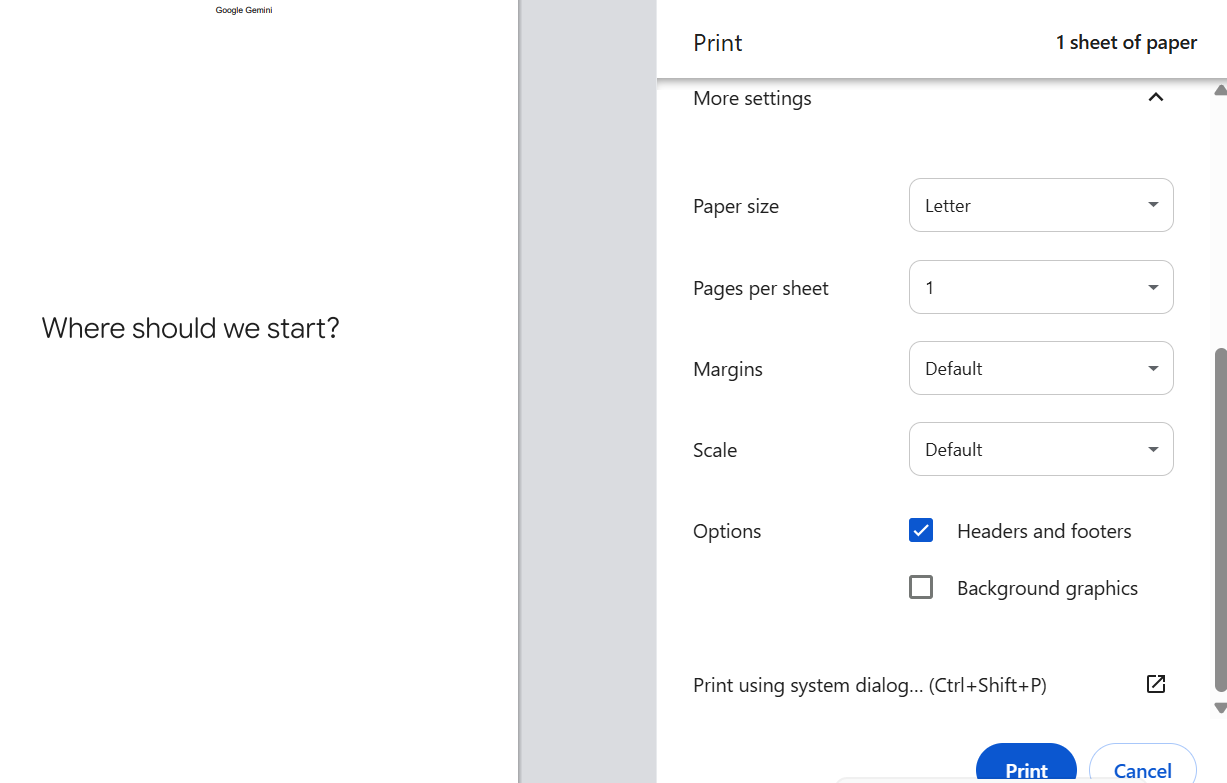
Applying Optimal Printer Settings for Your Restaurant requires fine-tuning advanced options:
- Paper size:
- Function: Sets paper dimensions matching your physical roll or sheet.
- Usage: Click the dropdown menu to select appropriate media sizes (such as Letter, A4, or 80mm thermal receipt paper).
- Pages per sheet:
- Function: Prints multiple document pages onto a single physical sheet to save media.
- Usage: Specify the desired ratio (such as 1 page per sheet).
- Margins:
- Function: Controls blank spacing around page edges.
- Usage: Choose Default, or select options like Minimum or Custom to eliminate unnecessary white space.
- Scale:
- Function: Resizes printed document content relative to original dimensions.
- Usage: Retain Default (100%), or adjust percentages to shrink or enlarge layout elements to fit target receipt widths.
- Options:
- Function: Toggles auxiliary page elements on or off.
- Usage:
- Headers and footers: Check this option to display page titles, URLs, or timestamps; uncheck it for clean receipt printing.
- Background graphics: Check this option if receipts feature logo graphics, background colors, or watermarks required for print display.
- Print using system dialog:
- Function: Launches operating system print dialogs for specialized hardware options.
- Usage: Click this option or press Ctrl + Shift + P if specific driver controls are missing from browser menus.
Final Execution Controls
- Print:
- Function: Dispatches final print jobs to configured hardware using defined parameters.
- Usage: Click this blue button to confirm output.
- Cancel:
- Function: Closes print preview windows without executing jobs.
- Usage: Click to abort print requests.
Following these steps ensures proper configuration:
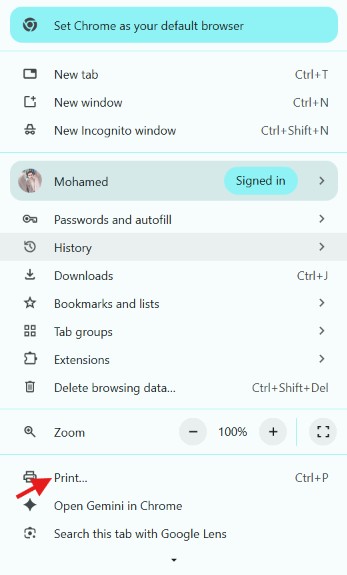
- Accessing print options via top browser menus or print icons.
- Opening Page Setup options within browser controls.
- Background Configuration: Confirming background graphics printing within properties windows ensures corporate logos, colors, and graphics render accurately across receipts.
- Margin Configurations: Adjusting paper scaling and margin parameters within setup panels ensures receipts format cleanly without clipped text.
- Opening browser print option windows via menu bars.
- Quality Optimization: Opening More settings and confirming that page simplification options remain unchecked.
- Margin Setup: Setting margins to None to strip extra whitespace and enable background graphics.
- Confirming receipt preview layouts visually.
Manage your commercial operations from anywhere with complete ease and safety through an integrated POS and e-commerce platform.
Try the software for free here
Educational tutorials for the software are available here
FAQ About Receipt Printing in Al-Badr Sales Pro
How Can I Achieve Optimal Printer Settings for Your Restaurant in Web Browsers?
To establish Optimal Printer Settings for Your Restaurant, open browser print controls by clicking the print icon, access page setup parameters, enable Background graphics, and set margins to None to eliminate awkward borders.
Can I Print Invoices from Browsers Other Than Google Chrome or Mozilla Firefox?
Yes, though Google Chrome and Mozilla Firefox are recommended because they offer superior control over thermal receipt parameters compatible with Al-Badr Sales Pro. Other browsers may require manual adjustments to maintain high output quality.
What Are the Recommended Settings for Printing Invoices Correctly?
Set margins to None (0) to eliminate extra whitespace, enable Background graphics to display store logos and colors properly, and keep page simplification options unchecked to preserve formatted layouts.
How Can I Verify Invoices Will Print Correctly?
Preview the receipt within the browser window after adjusting settings. Confirm logos, line items, and pricing display clearly without horizontal scrolling or text clipping before sending the job to the printer.
Can I Print Multiple Invoices Simultaneously?
Yes, batch invoice printing is supported. Ensure each receipt layout is previewed and configured correctly in browser settings prior to dispatching multi-job print streams.
Is Additional Software Installation Required for Printing?
No, Al-Badr Sales Pro requires no extra printing software. Adjusting native browser settings as outlined in this guide delivers high-quality print outputs directly.
Can I Try the Software Before Purchasing?
Yes, you can test Al-Badr Sales Pro for free via the trial link, exploring all platform features and testing receipt printing setups comfortably.
Can Printer Settings Be Adjusted at Any Time?
Yes, printer configurations can be updated anytime through browser print menus. If layout issues arise, you can restore browser defaults or adjust margin parameters to suit your hardware requirements.