


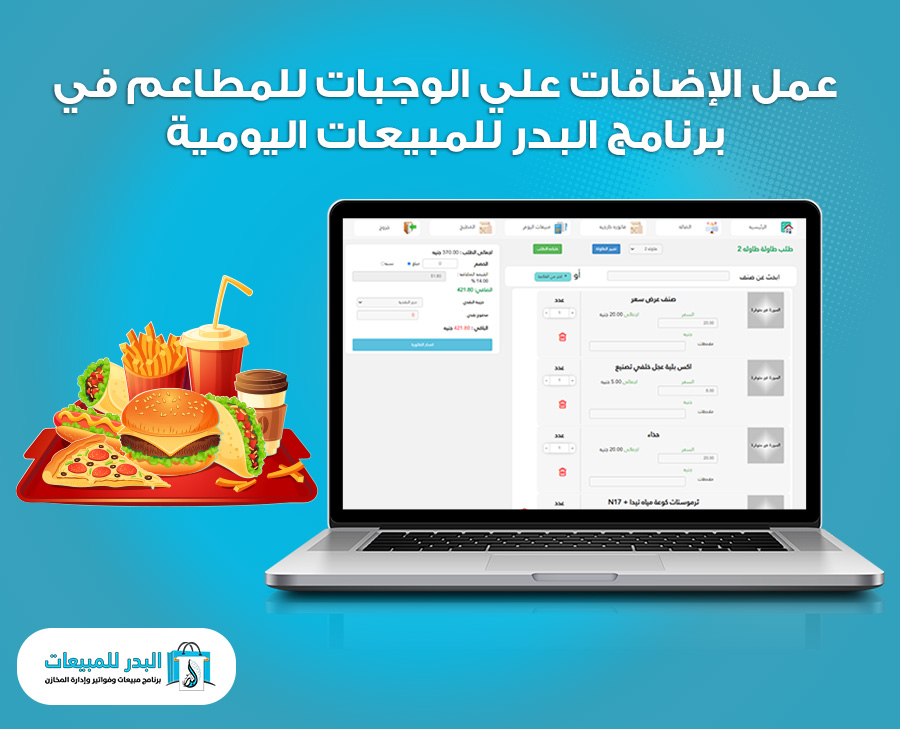
In this article, we’ll explore how to add and manage meal extras for restaurants using Al-Badr Daily Sales POS. The program provides precise and professional management of restaurant operations, ensuring accurate accounting, reporting, and smooth coordination between the cashier and the kitchen. You’ll learn how to add extras to meals, set their prices, display them for selected items, and automatically include their cost in the customer’s invoice.
Adding and Managing Meal Extras in Al-Badr Daily Sales POS | Restaurant POS System
To follow the steps for performing this process, please follow the instructions below:
Initially, you must define these extras in the program’s database so they can be displayed with the dishes for selection.
To do this, go to the side menu, then “Items,” and click on “Item Extras.”
Here, a new page will open showing the existing extras in the program, or you can create a new extra by clicking “Add New.”
A table will appear where you can add the extra by entering (Extra Name – Price – Choose Image for Extra) and then click “Save” or “Cancel” as desired.
You can also edit or delete a previous extra as shown in the following image:

Next, go to the POS to see how these extras are selected. Please note, not all items have extras enabled; this depends on your preference. When you want certain extras to be available, you must enable the extras feature for the dish when creating it for the first time, as shown in the following image:

Setting up and specifying toppings for restaurant meals in Al-Badr Daily Sales Program | Restaurant Cashier Program
After confirming that extras are enabled for the desired dish or meal, go to the POS to select these extras with the dishes. Navigate to the side menu, then “Sales,” and select “POS.”
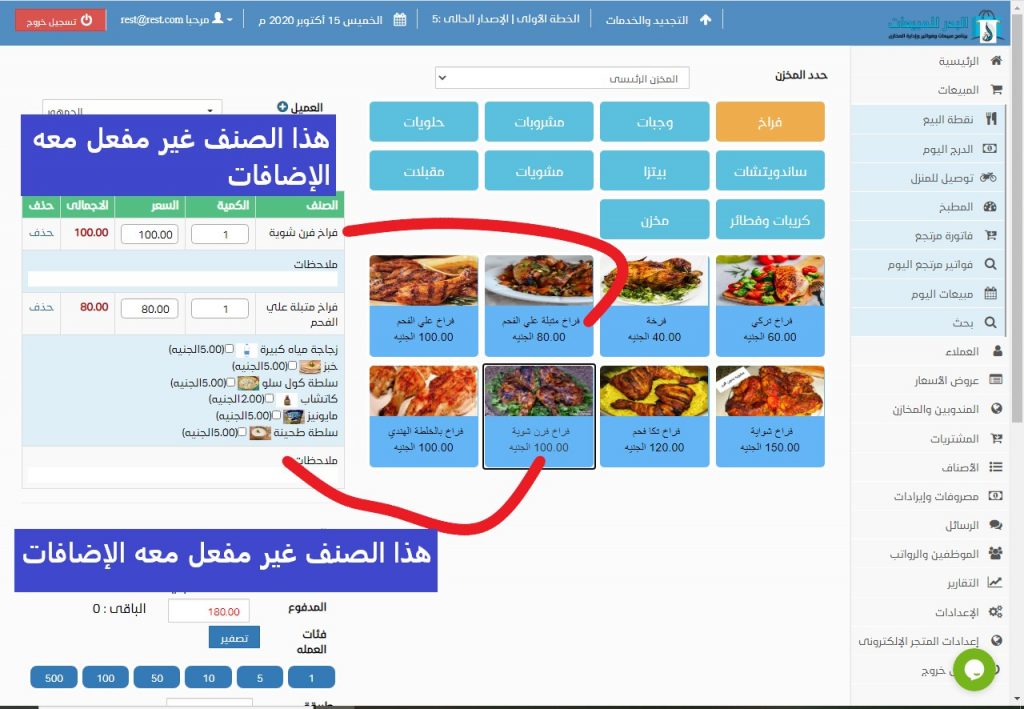
After selecting the desired dishes for the customer, some items will show the available extras, while others will not, based on your previous settings.
Select the extras by checking the box next to each extra so that its price is automatically added to the total invoice with the added values, as follows:
Then follow the previous steps for choosing the payment method and order type (Cash – Dine-in – Home Delivery), and continue as explained earlier. The kitchen staff will read the extras on the kitchen screen and prepare the meals with the added items.