


Solving the invoice non-appearing problem after saving in Al-Badr Sales Pro, pos is something important we offer to solve it, If the invoice doesn’t appear to be printed after clicking on “save”, you need to revise your own settings:
1- Choose the option “display invoice after saving” and click “save”.

Solving the invoice non-appearing problem after saving in Al-Badr Sales Pro
2- Make sure that your browser allows the pop-ups.
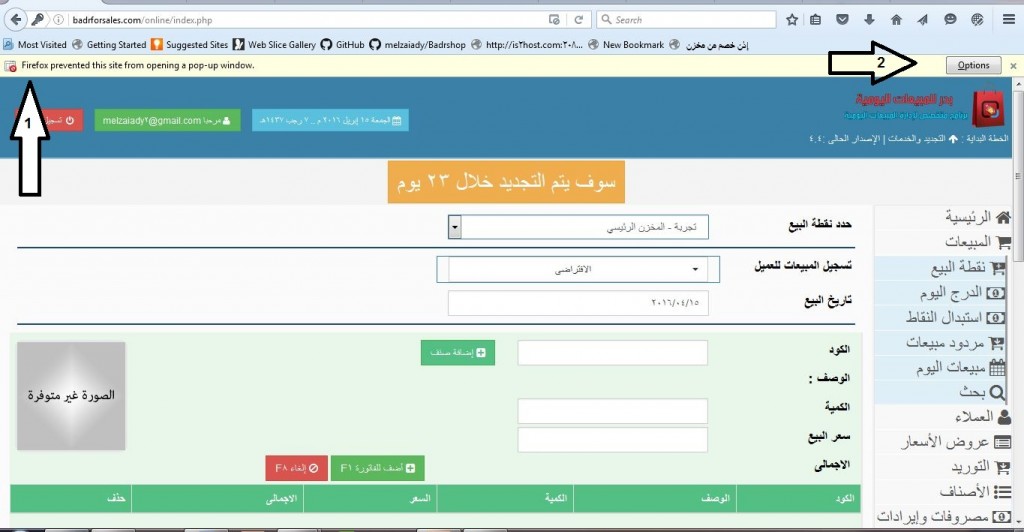
Solving the invoice non-appearing problem after saving in Al-Badr Sales Pro
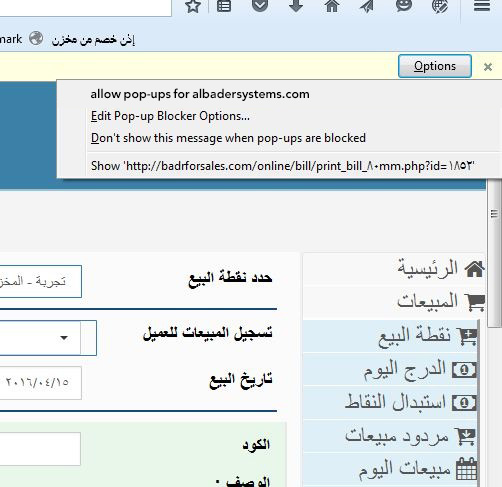
3- Then choose to display and show “albadrsystems” and it will appears.
Why Choose Al-Badr POS Software? Key Features & Benefits
The system is designed for ease of use, flexibility, and full business control from anywhere.
- Easy sales and purchase recording
- No installation required
- Compatible with all operating systems
- Secure data storage with privacy protection
- Database backup capability
- Detailed sales reports (general or customer-specific)
- Multi-user system with individual user permissions
- Manual product entry or barcode scanning support
- Ability to update the system directly from our website
- Run simultaneously on multiple devices without purchasing additional copies
- Access via desktop, laptop, or mobile device
- Easy item management (code, brand name, price, quantity)
- Daily sales, purchases, and accounting reports
- Real-time inventory tracking
- Low stock alerts and minimum quantity notifications
- Automatic invoice total and discount calculations (no calculator needed)
- Expense recording with printable reports
- Customer database management
- Customer debit and credit reports
You can try the software with a free 5-day trial
training tutorials to learn how to use the system step by step