



Al-Badr Sales Pro is the best sales, inventory, cashier, and Point of Sale (POS) software that enables you with the knowledge of how to add a new store to efficiently manage multiple warehouses, link various branches together, and track the exact stock balances for each of them.
It also allows you to assign items to different inventory locations, search for products across separate facilities, and receive instant alerts for items that have reached their minimum stock threshold within your stores.
Adding a New Store – How to Transfer Between Warehouses in Al-Badr Sales Pro
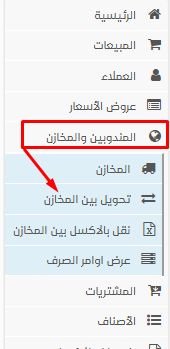
To transfer stock between your facilities once you learn how to add a new store in Al-Badr Sales Pro, the process is incredibly simple. From the sidebar navigation menu, under the “Stores” category, select “Transfer Between Stores” as illustrated below:
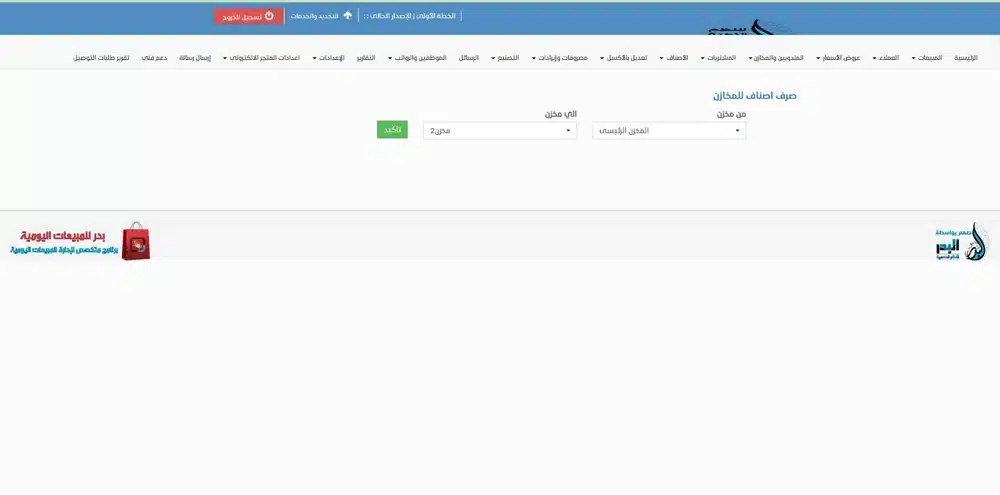
The following screen will appear, through which you will define the “Transfer From / To” parameters—meaning moving stock from Store A to Store B. In this step, we have selected the primary main store as shown:
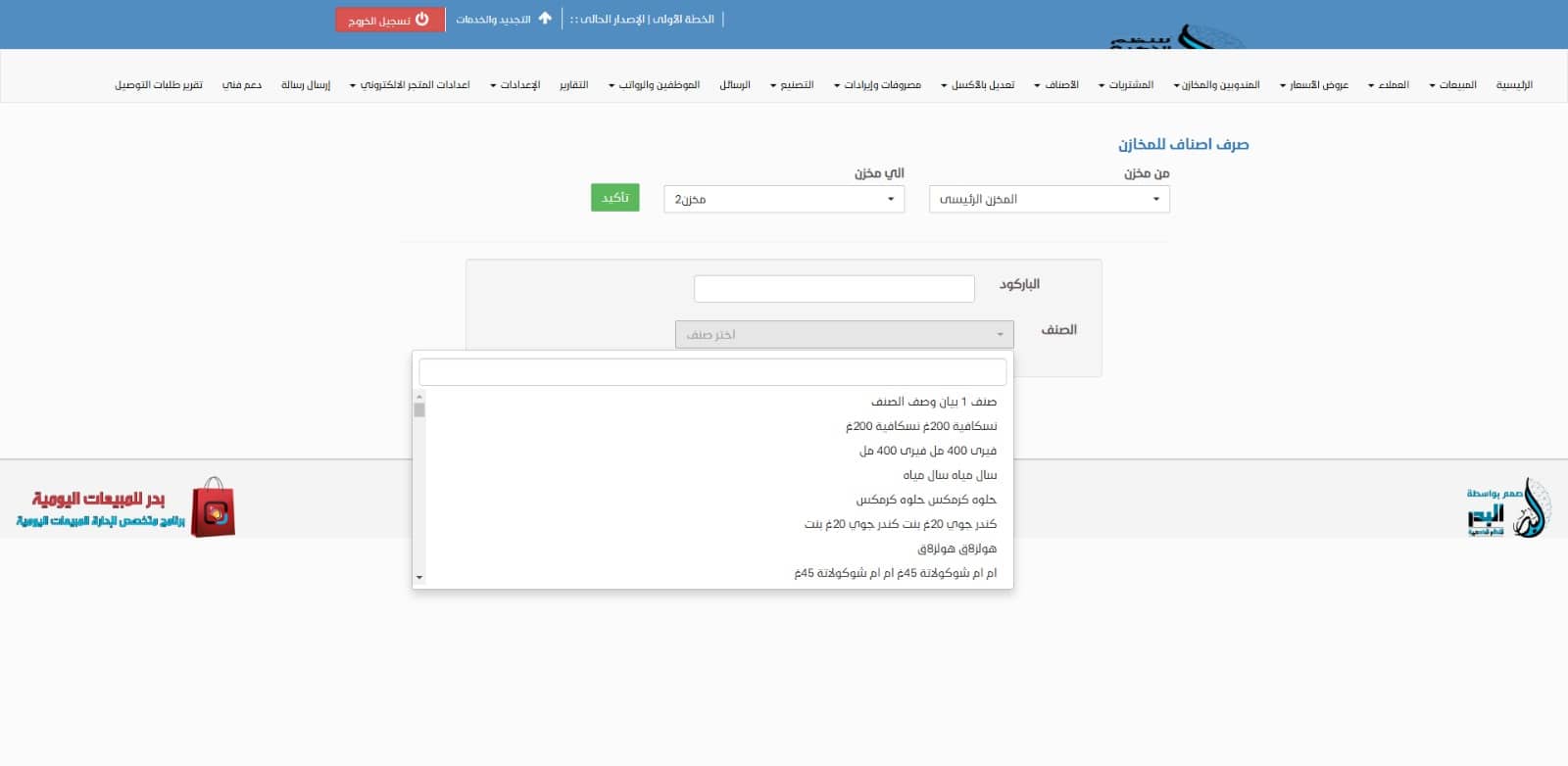
After defining the warehouse, you will begin the step of transferring the item itself from the first location to the secondary destination. You can execute this action either by scanning the barcode or simply typing the item name naturally.
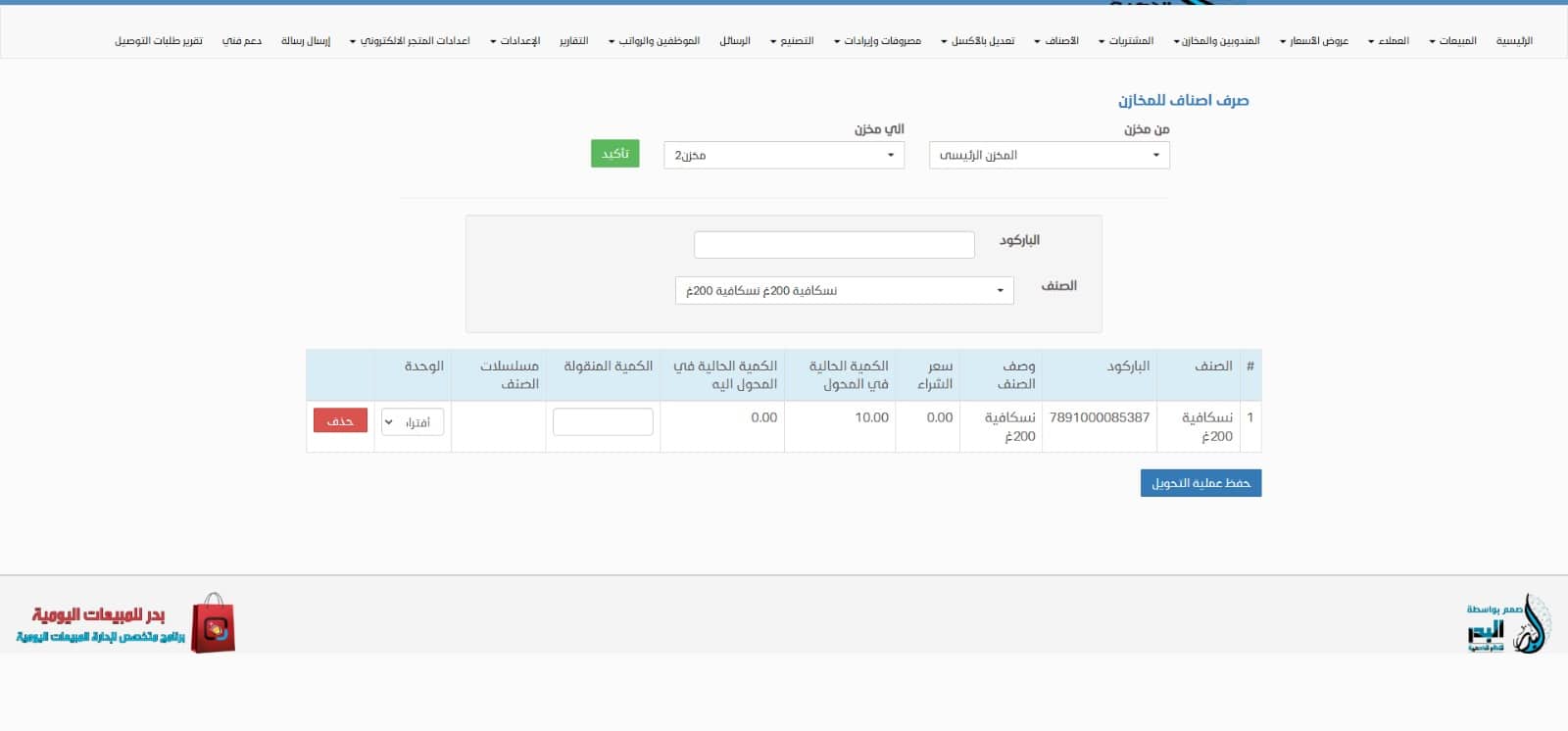
Once the item is selected, the system automatically displays its total available quantity in the source store, along with the specific quantity you intend to transfer to the secondary location. You can also define the specific unit of measurement to be moved if the item is registered with multiple units.
When you click “Save Transfer Process”, a confirmation window will appear displaying the specific order number, which you can easily print or export to an Excel sheet. By clicking “Confirm”, you have successfully completed the stock transfer loop.
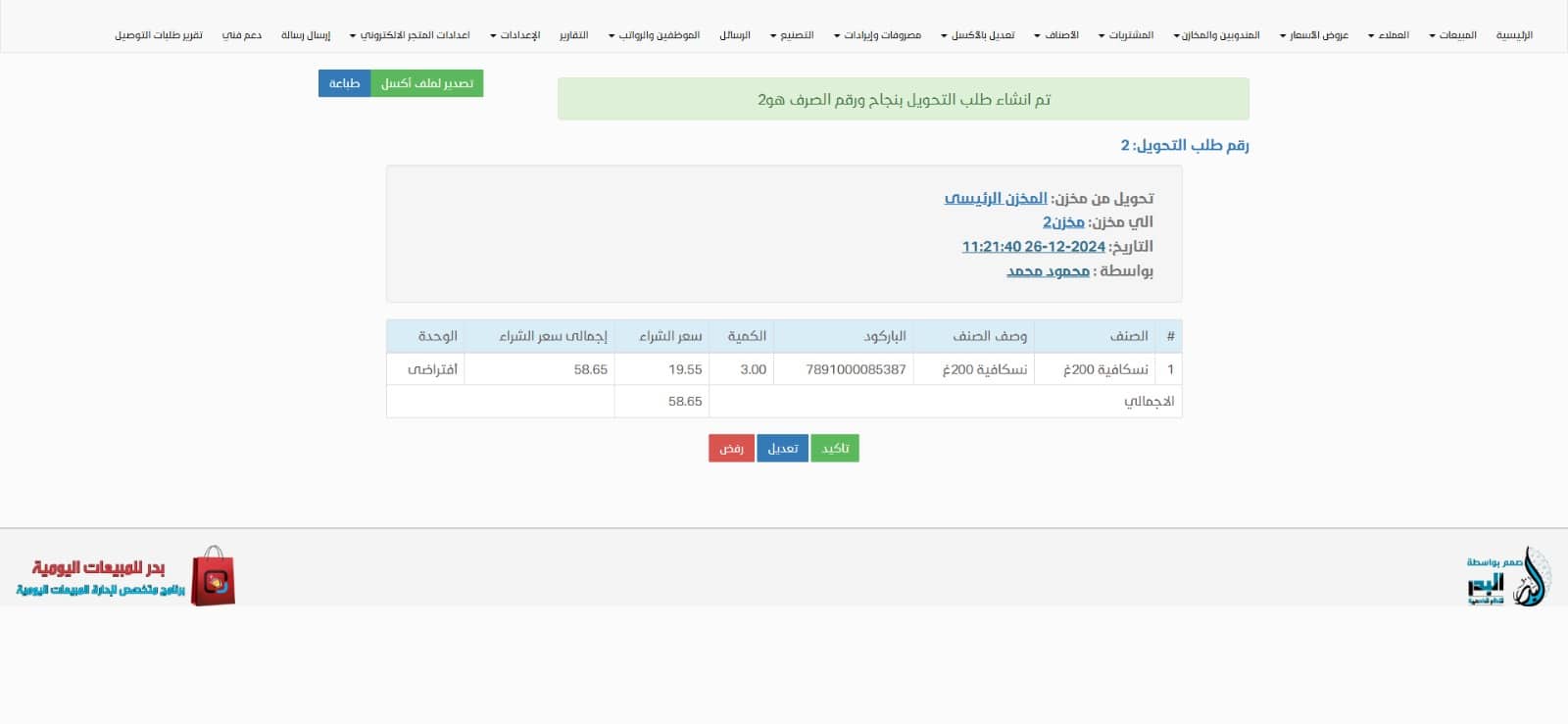
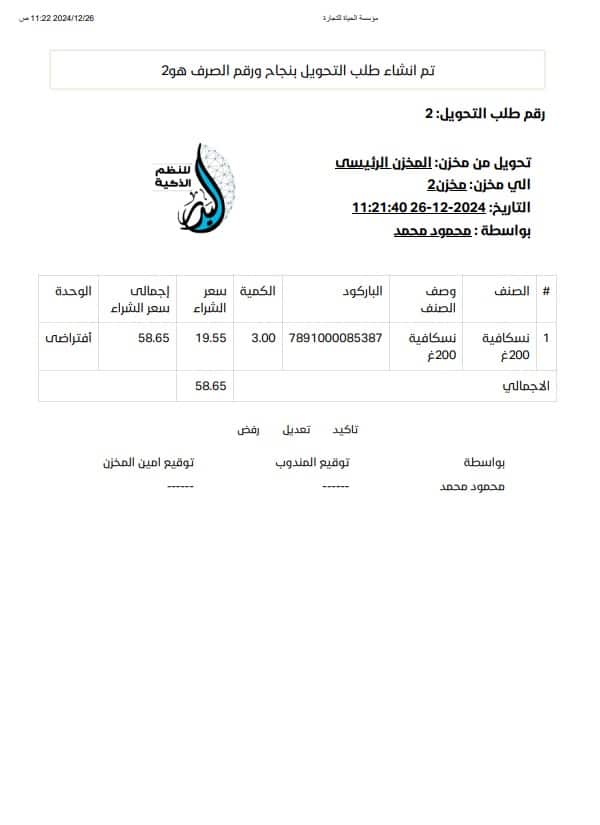
This is the official layout of the stock transfer request voucher after completing the operation:
Reviewing Issuing Orders and Inventory Transfers in Al-Badr Sales Pro
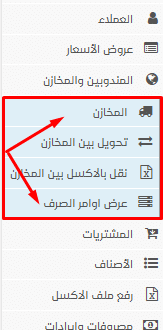
To display your stock issuing orders, navigate to the sidebar menu, click on the Items section, and choose “View Issuing Orders”:
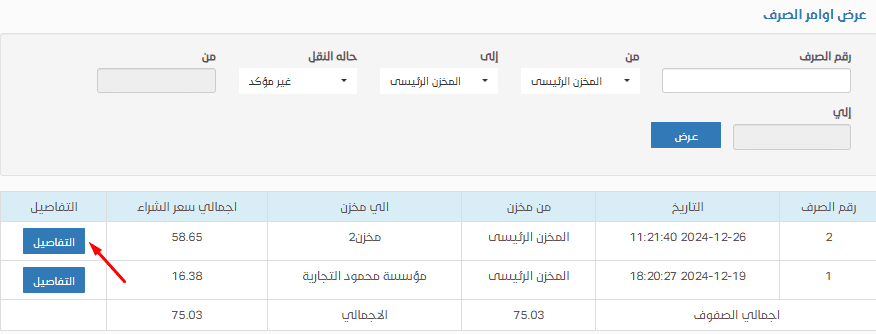
The issuing orders tracking page will display as follows, granting you the option to click on “Details” to audit any specific transfer order.
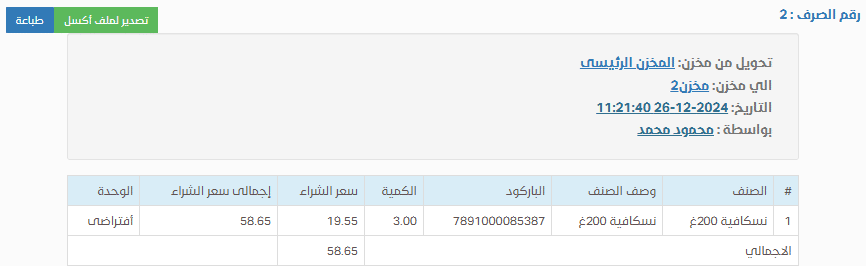
Upon clicking “Details”, the breakdown of the asset transfer ledger will appear in this format:
Reviewing the Inventory Audit Report in Al-Badr Sales Pro
Regarding the comprehensive stock inventory report in the Al-Badr Sales Pro platform, you can access and review it via the sidebar menu by clicking on the “Reports” icon and then selecting “Inventory Audit Report” as demonstrated in the following image:

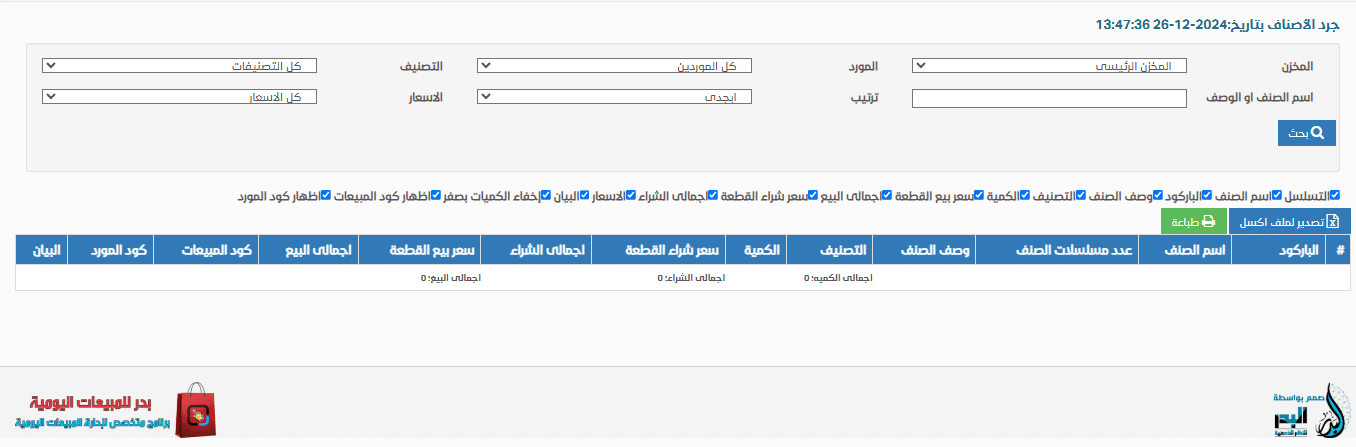
This is the visual layout of your real-time stock sheet report:
Get Your Free Trial Now
Explore more software capabilities and features: [Click Here]
Access step-by-step software educational tutorials: [Click Here]